
ASUS ProArt Mouse MD301 Review: The Working Mouse That Respects Your Workflow

ASUS ProArt MD301
The ASUS ProArt MD301 makes a coherent and largely convincing case for itself as a working mouse built for people who spend full days at a screen.
Positives
- Hot-Swap Switches That Accept Both Micro and Optical
- The SmartShift Wheel Is Genuinely Useful, Not Just a Gimmick
- The Body Profile Works for Larger Hands
- Side Button Placement Gives the Thumb a Proper Anchor
- Multi-Device Without the Compromise
Negatives
- The ASUS Dial Is Gone — and Its Absence Will Be Felt
- The Software Shift From Armoury Crate to Gear Link
TLDR
- Hot-swappable switches support both micro and optical — first productivity mouse at this tier to do so
- SmartShift scroll wheel shifts between notched and free-spin automatically
- Raised body profile accommodates larger hands without fatigue
- Side button placement gives the thumb a natural anchor for the side scroll wheel
- No ASUS Dial — buyers coming from the MD300 need to know that upfront
- Estimated RM600–RM700 pending official Malaysian pricing
Most mice that carry a “pro” label are either gaming hardware in a grey shirt, or productivity tools so conservative they have nothing interesting to say. The ASUS ProArt MD301 is neither. It is a considered redesign of the MD300 — keeping what worked, replacing what did not, and making a few additions that took the entire category a cycle too long to figure out.
The MD300 had the ASUS Dial, a dedicated physical wheel for timeline scrubbing and parameter adjustment that made it genuinely irreplaceable for certain creative workflows. The MD301 removes it entirely and builds a different case for itself. Whether that is a step forward or a step sideways depends on what your hands actually do all day.
After extended daily use, here is the honest account.
What We Like About the ASUS ProArt MD301
Hot-Swap Switches That Accept Both Micro and Optical
This is the feature that does not make it onto most review summaries, and it should. The MD301 ships with TTC E169 mechanical micro-switches rated at 80 million click cycles. That number alone is an upgrade over the MD300’s Omron D2FC-F-K at 50 million. But the real story is the socket design.
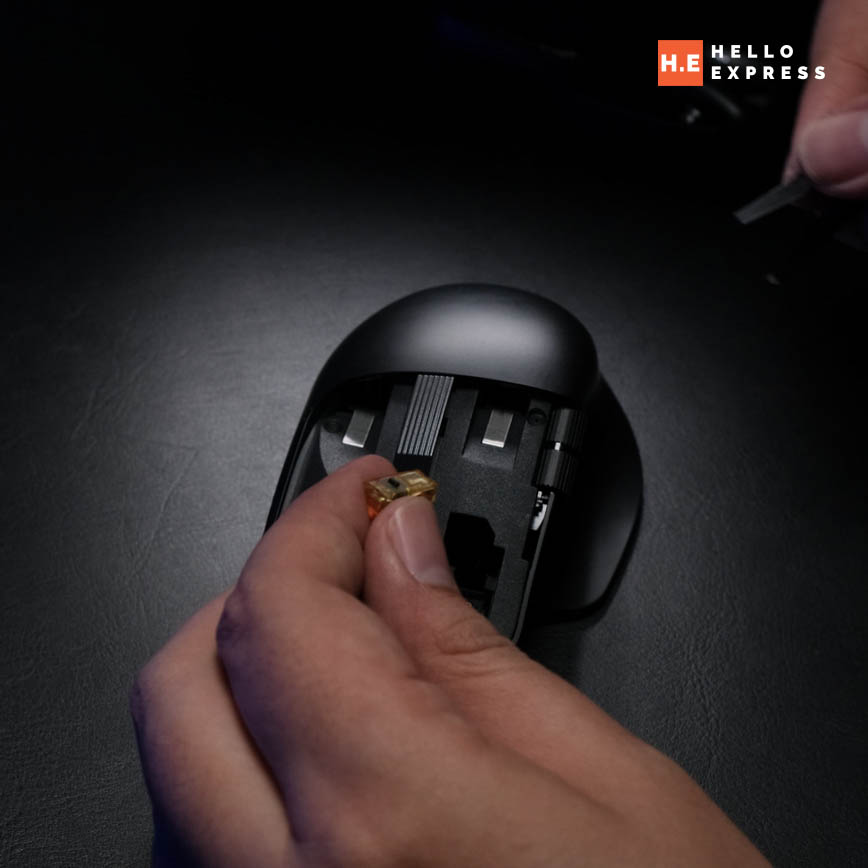
The MD301’s hot-swap sockets support both micro-switches and optical switches — a distinction that matters more than the click rating. Optical switches have no physical contact point, which means no debounce delay, no double-click failure mode, and no wear curve. If you have ever thrown away a mouse because the left click started double-registering, you understand exactly what the hot-swap socket represents: the mouse does not become disposable when the switches do.
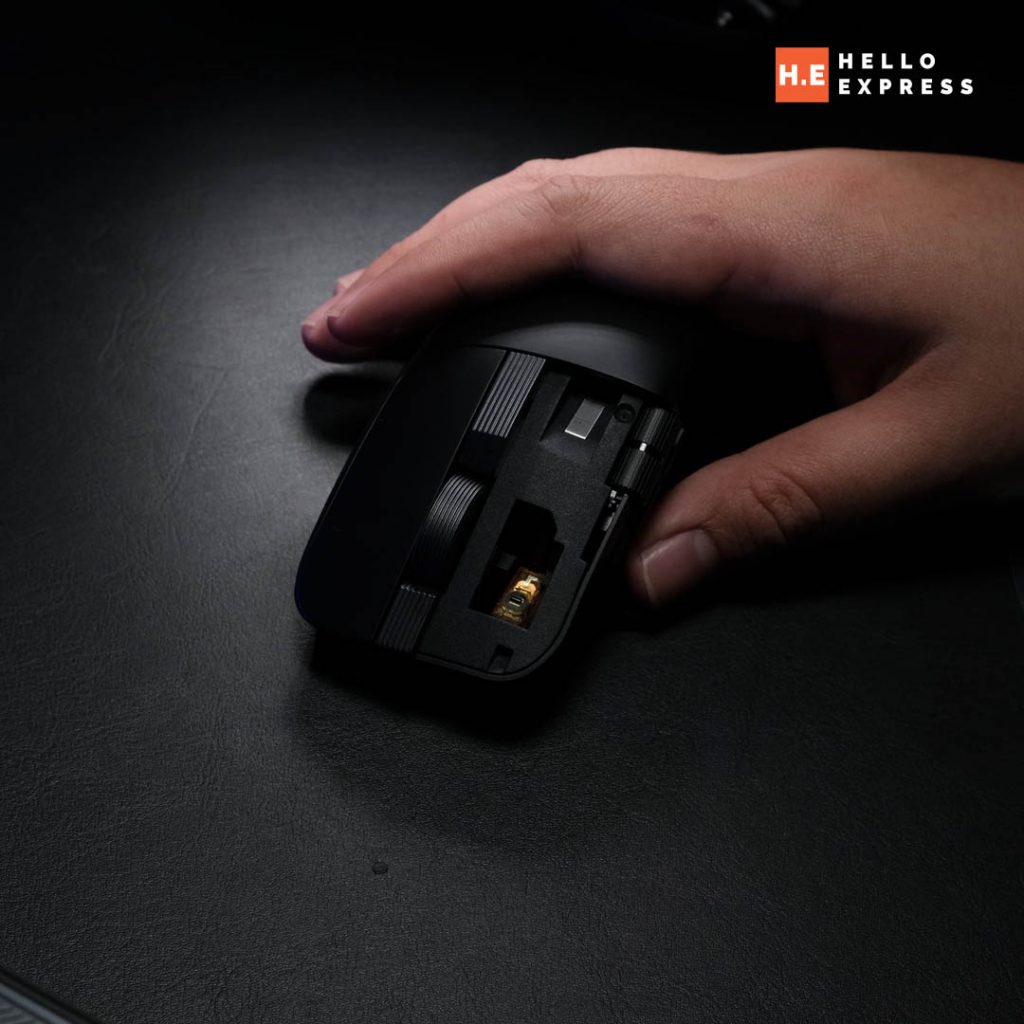
At RM399, you are buying a chassis that can outlive two or three switch generations. For a working tool that sits under your hand eight hours a day, that changes the value calculation entirely.
The SmartShift Wheel Is Genuinely Useful, Not Just a Gimmick
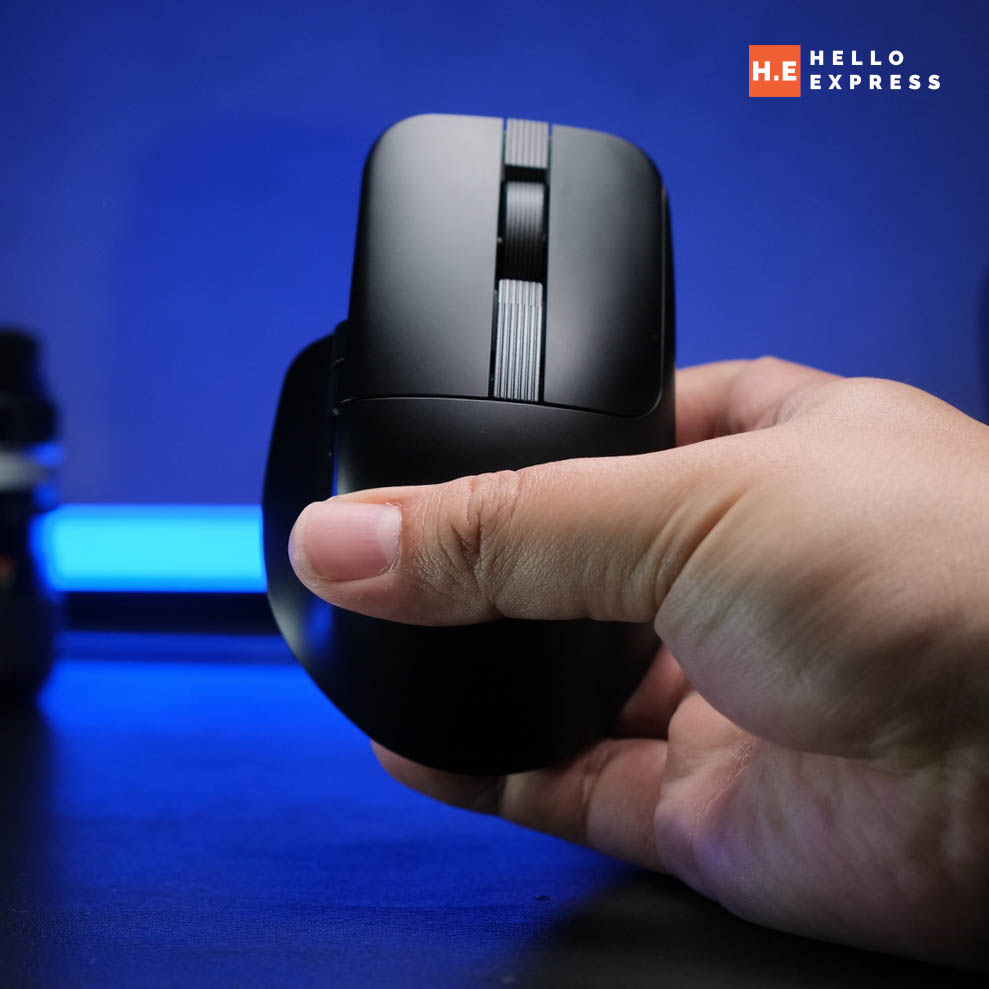
The main scroll wheel on the MD301 runs ASUS’s SmartShift mechanism — a system that reads scroll velocity and automatically shifts between two modes. Slow, deliberate scrolling produces notched, tactile feedback for precision movement. A strong stroke releases into free-spin, carrying momentum across multiple pages before settling.
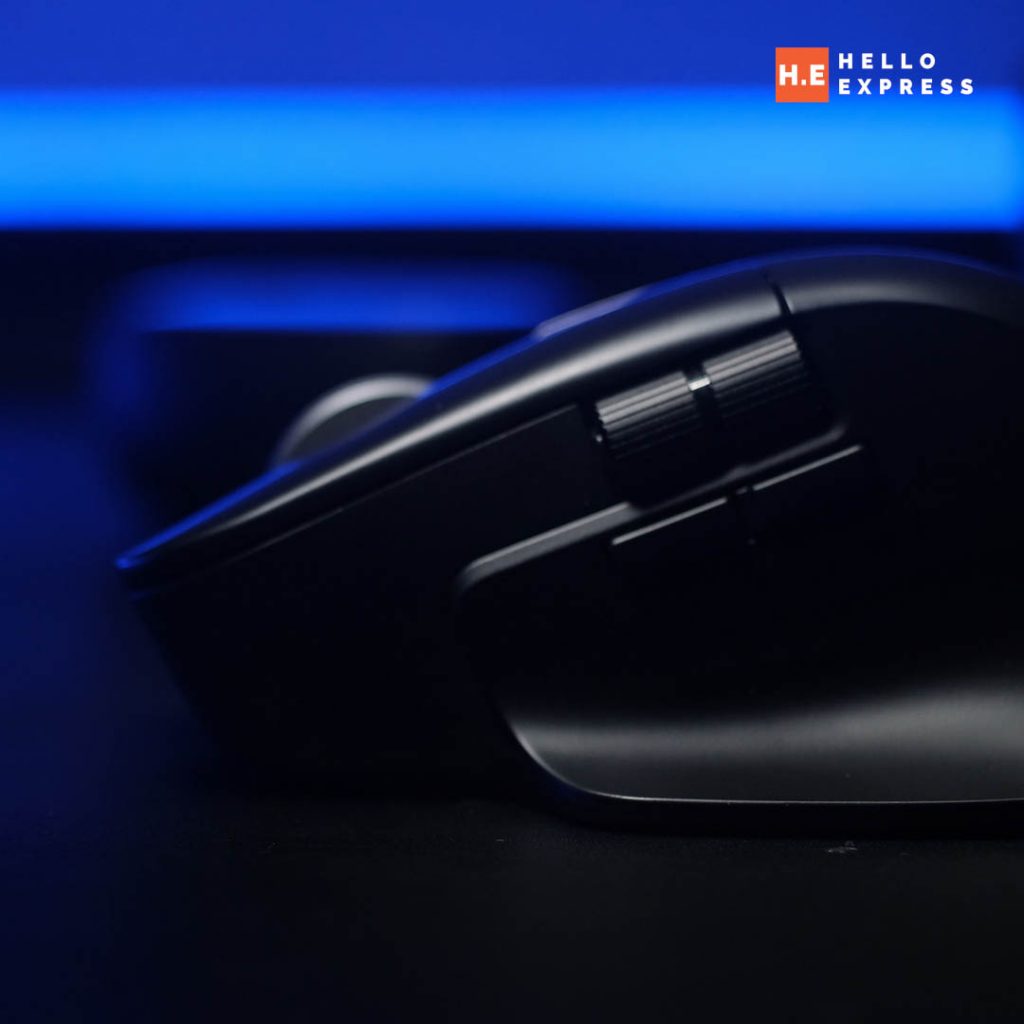
In practice: navigating a dense product brief, a long spec document, or a tall webpage, one deliberate flick covers the distance that would otherwise take ten incremental scrolls. The transition between modes is seamless — you do not toggle anything, you just scroll with intention and the wheel reads it correctly.
The notched mode remains genuinely tactile when you need it. Line-by-line navigation through code, careful movement through a timeline, scrolling back up to check a price — the wheel does not fight you. It is the right tool for both cases rather than a compromise between them.
The Body Profile Works for Larger Hands
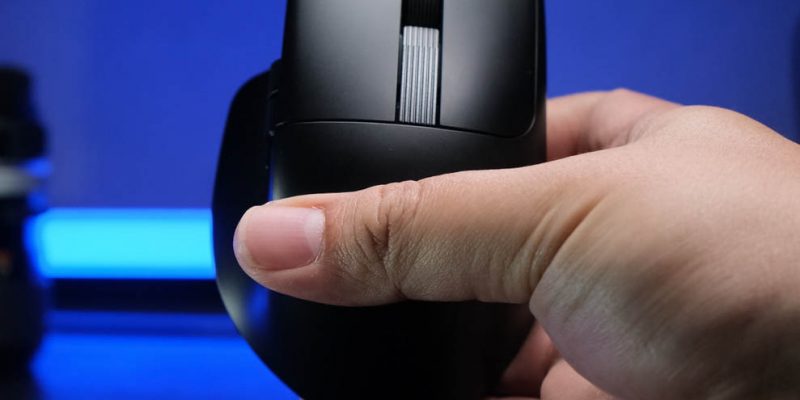
The MD301 sits higher than most productivity mice: 46.8mm at its peak, with a shape that fills the palm rather than sitting flat beneath it. For larger hands, this is the difference between a natural resting position and an active grip that fatigues over long sessions.
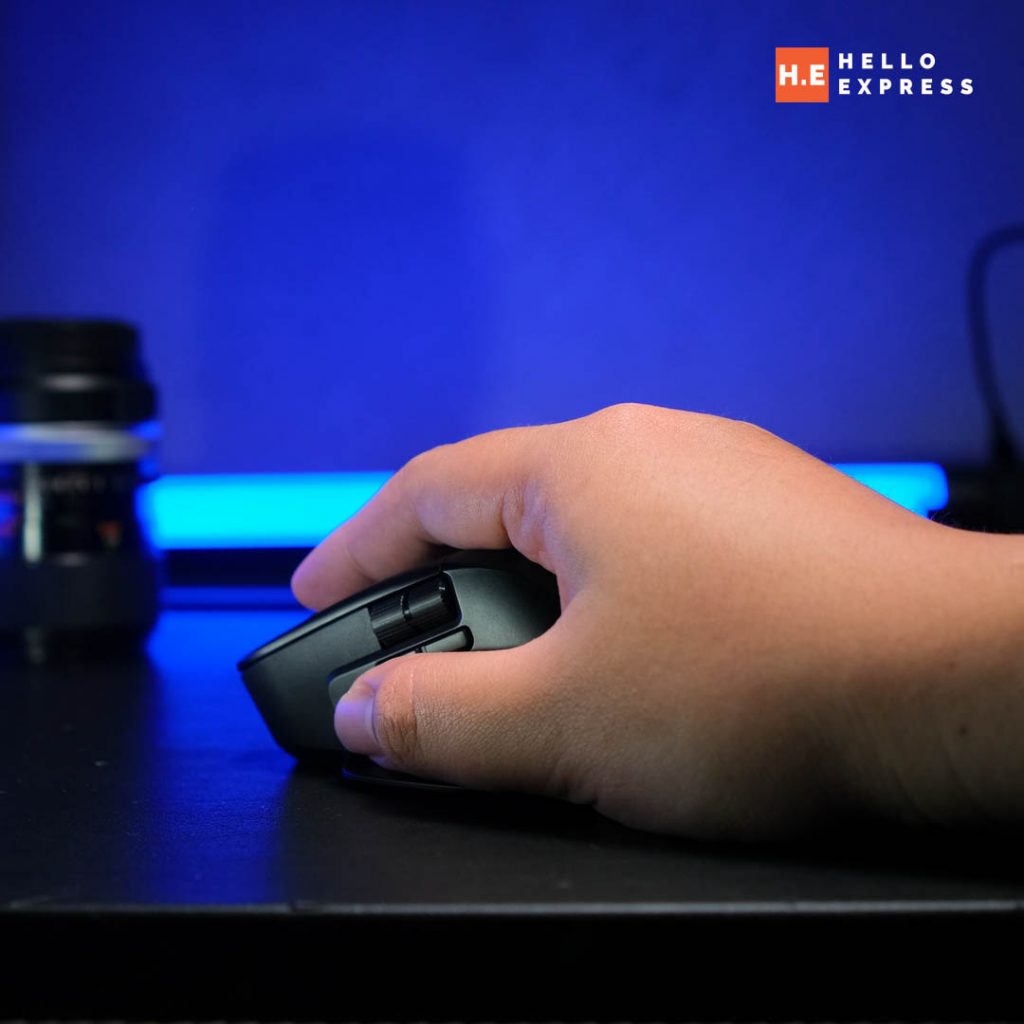
It is 99.7 grams — lighter than the MD300 at 109g, and lighter than many gaming mice with similar footprints. The raised profile and reduced weight work together: the hand rests rather than holds, and long working sessions do not produce the wrist tension that flatter, heavier mice accumulate over time.
Side Button Placement Gives the Thumb a Proper Anchor
This is a detail no spec sheet captures. On the MD301, the back and forward buttons sit immediately below the side scroll wheel — which means the thumb has a natural brace point when using the wheel for fine adjustment. Rather than the thumb floating unsupported while trying to dial in a precise movement, it rests against the buttons as an anchor.
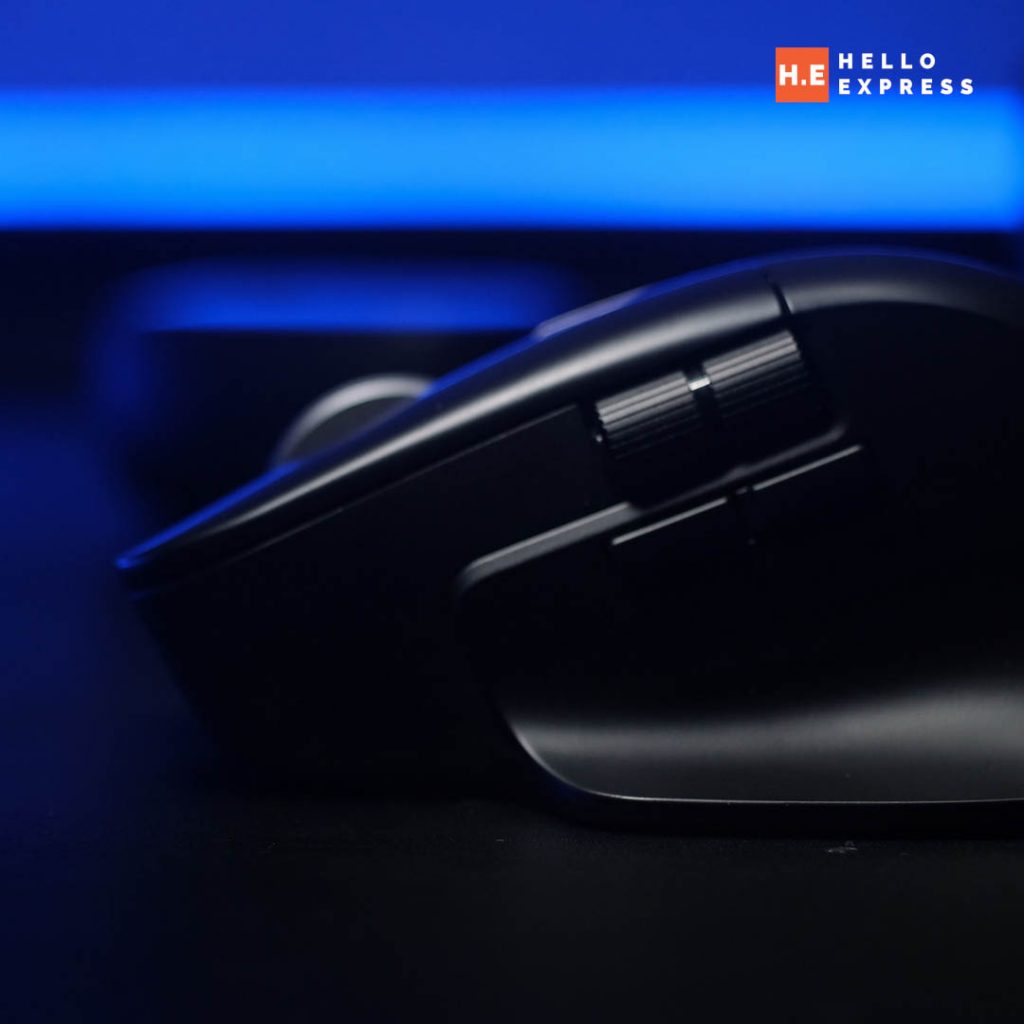
The result is meaningfully more control during precision work — photo editing, parameter adjustment, scrolling through a timeline frame by frame. It reads as ergonomics done by someone who actually uses a mouse for extended creative sessions, not someone optimising button placement for a render.
Multi-Device Without the Compromise
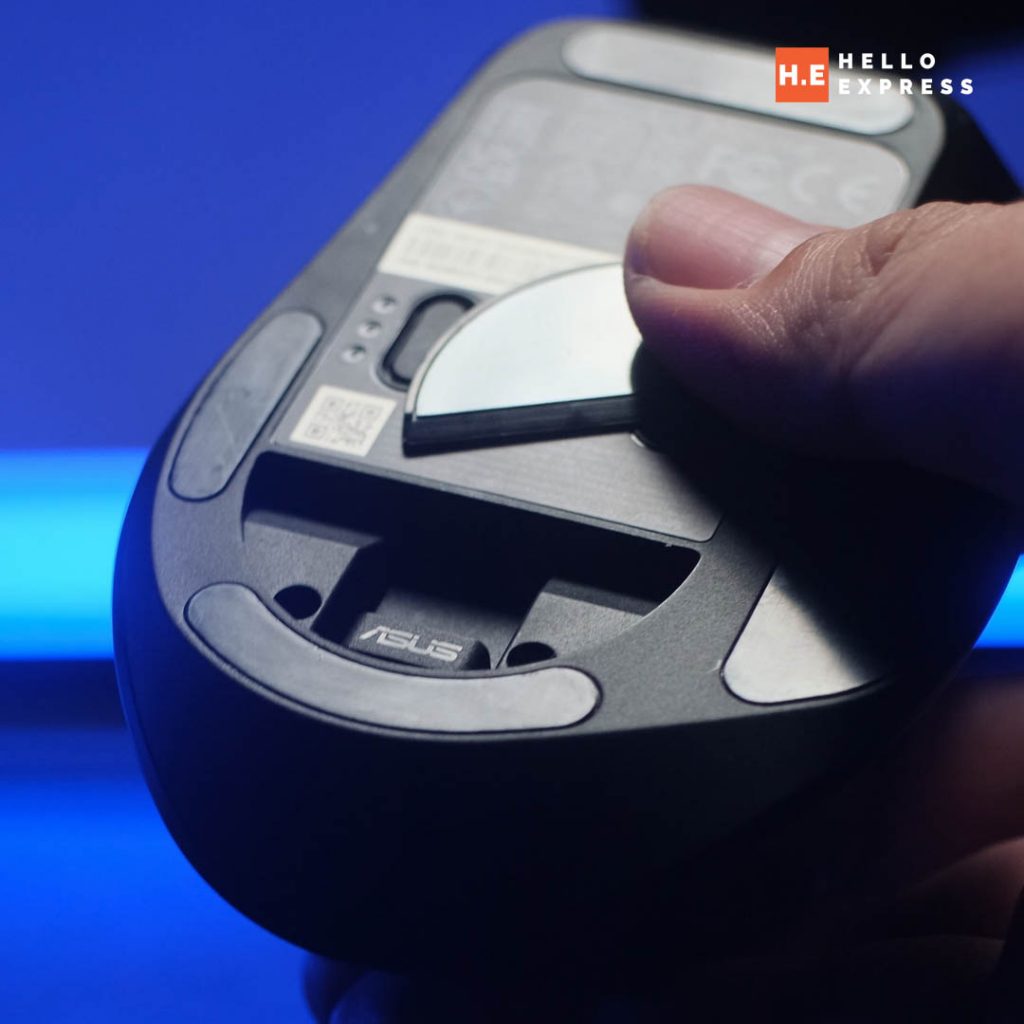
The MD301 connects across up to five devices simultaneously — wired USB, RF 2.4GHz, and up to three Bluetooth connections. The practical configuration for a multi-screen or multi-machine setup: one wired to a desktop for the session where performance matters, 2.4GHz to a laptop for mobility, Bluetooth slots available for tablets or secondary machines.
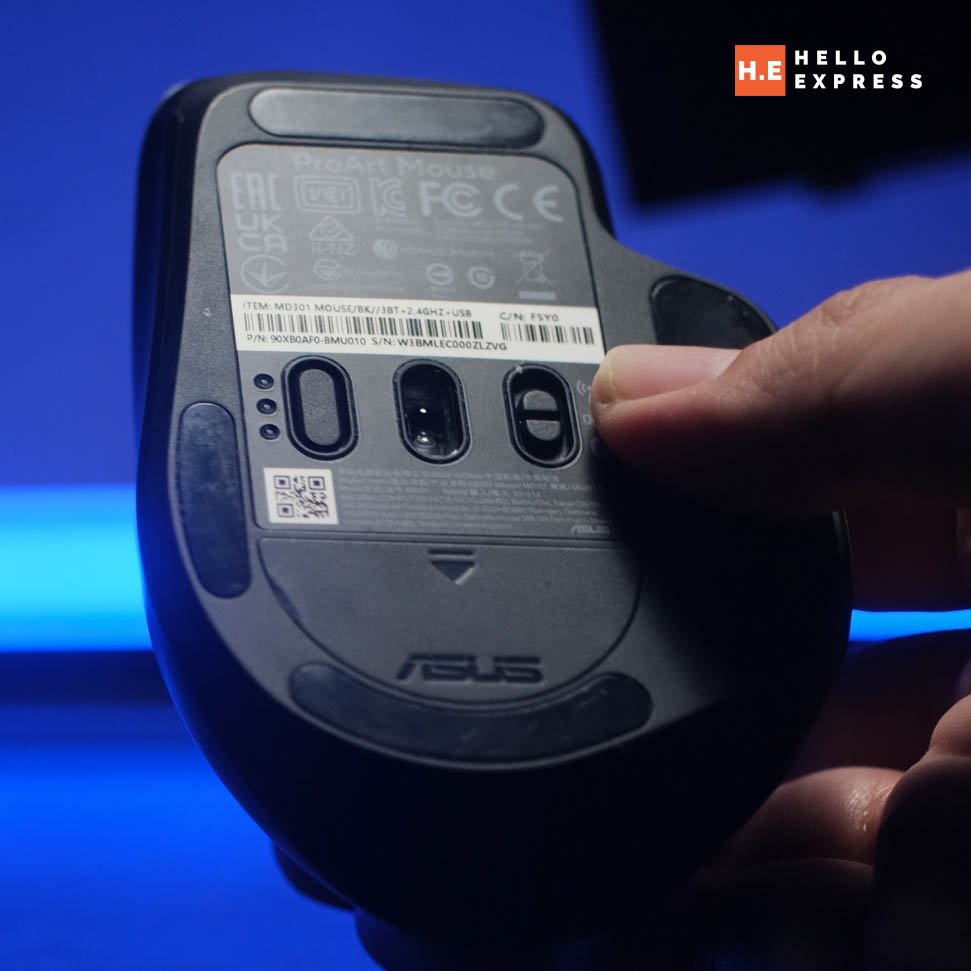
Battery life at 180 days with the 2.4GHz dongle is strong enough that charging becomes a once-every-few-months ritual rather than a weekly task. The quick charge is sensible: one minute of charge delivers three hours of heavy use. Not something you want to rely on regularly, but a real recovery option when you realise the mouse is at zero before a long session.
What We Don’t Like About the ASUS ProArt MD301
The ASUS Dial Is Gone — and Its Absence Will Be Felt
The MD300 had a physical dial on the left side of the body — a rotating encoder purpose-built for timeline scrubbing, brush parameter adjustment, and viewport rotation in CAD. It was the MD300’s clearest differentiator and its strongest argument for creative professionals.
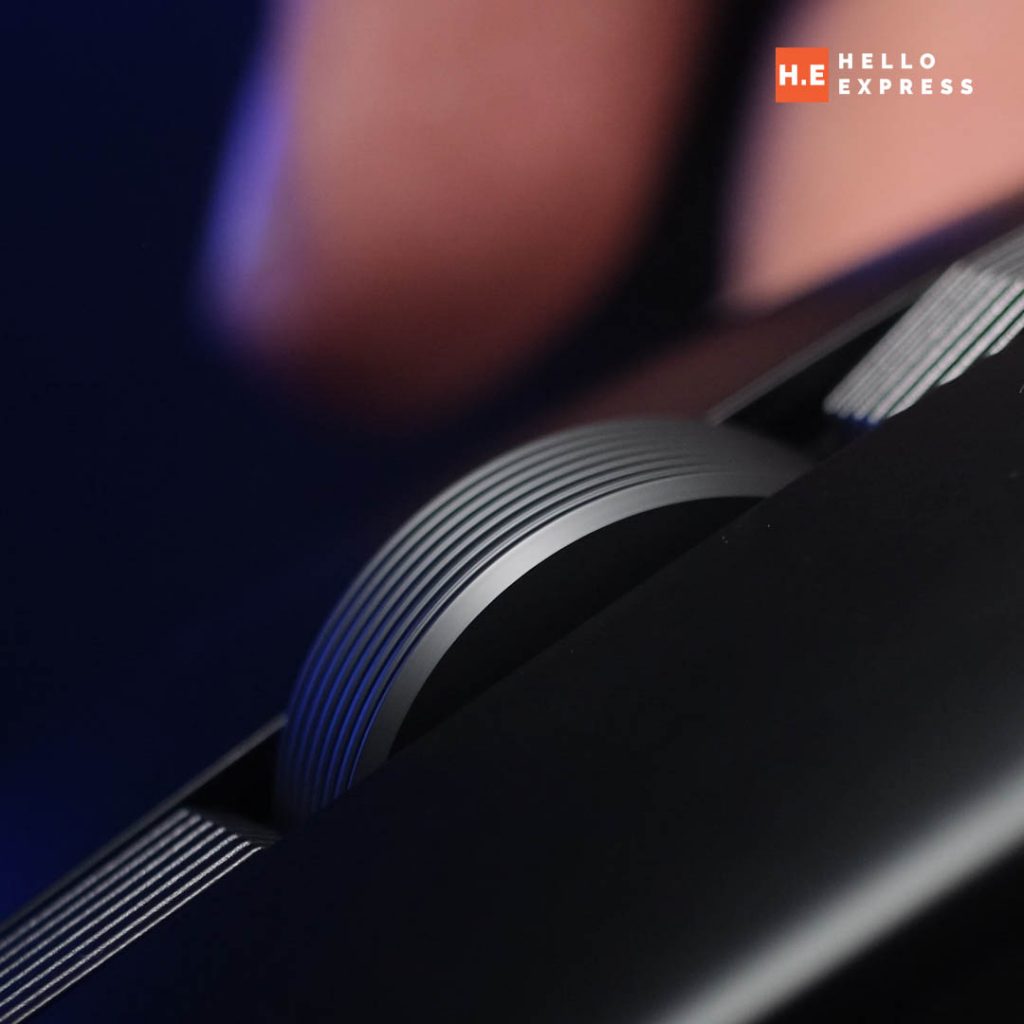
The MD301 removes it entirely and replaces it with a standard side scroll wheel. The side scroll wheel is usable, and the thumb anchor placement praised above applies here. But it is not a substitute for the dial’s precision or its purpose-specific application in creative software. If your workflow involved the MD300 dial for frame-by-frame timeline control in Premiere or layer opacity adjustment in Photoshop, the MD301 will require a rethink of how those tasks get done.
This is not a design mistake — the MD301 is clearly positioned as a productivity and multi-device tool rather than a specialist creative instrument. But buyers coming from the MD300 or researching it as an upgrade need to understand this is a platform shift, not a straight improvement.
The Software Shift From Armoury Crate to Gear Link
The MD301 moves from Armoury Crate to Gear Link for configuration. For buyers already in the ASUS ecosystem on Armoury Crate, this means maintaining a second software installation for one peripheral. Gear Link is the lighter, more focused application — arguably the better product — but the split configuration environment is friction worth acknowledging.
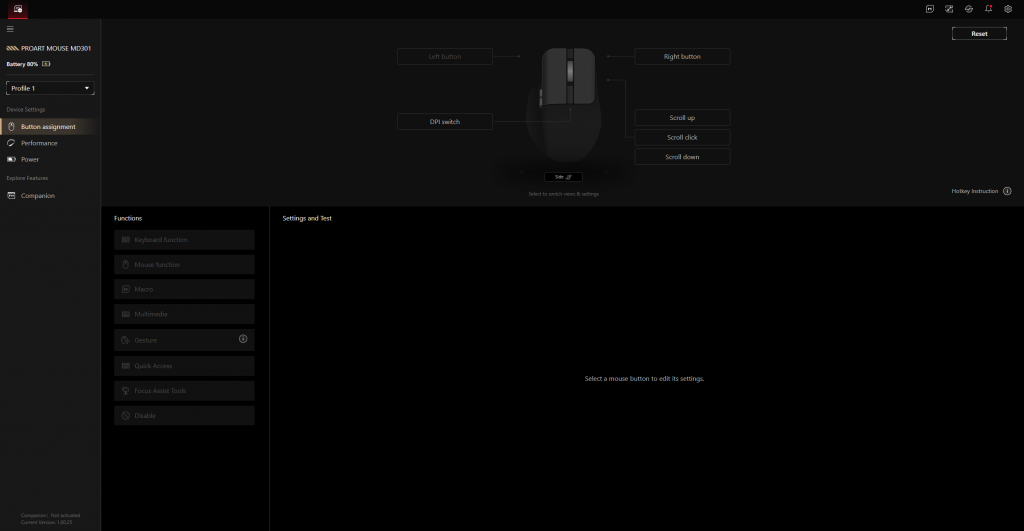
Gear Link handles DPI configuration, button remapping, and connectivity management cleanly. It is not bloated in the way Armoury Crate can be. The frustration is purely about ecosystem coherence, not the software’s own quality.
MD300 vs MD301 — What Actually Changed
The MD301 is not a straight upgrade. It trades the dial-specialist identity of the MD300 for a broader multi-device productivity platform. The comparison below captures the key differences:
| Specification | MD300 | MD301 |
|---|---|---|
| Sensor Resolution | Up to 4,200 DPI | Up to 8,000 DPI |
| Connectivity | RF 2.4GHz, Bluetooth | Wired USB, RF 2.4GHz, Bluetooth |
| Max Devices | 4 (1 RF + 3 BT) | 5 |
| Main Scroll Wheel | Standard scroll wheel | SmartShift (Free-spin / Tactile) |
| Side Controls | ASUS Dial + Side Scroll Wheel | Standard Side Scroll Wheel only |
| Switch Type | Omron D2FC-F-K (50M clicks) | TTC E169 (80M clicks) |
| Hot-Swap Switches | Micro switches only | Micro & Optical switches supported |
| Battery Life | Up to 150 days | Up to 180 days |
| Weight | 109g | 99.7g |
| Software | Armoury Crate | Gear Link |
Verdict
The ASUS ProArt MD301 makes a coherent and largely convincing case for itself as a working mouse built for people who spend full days at a screen. The hot-swap socket design, SmartShift wheel, raised body profile, and thoughtful side button placement are not checkbox features — they reflect decisions made around how the mouse actually gets used, not how it photographs in a product shot.
The ASUS Dial is gone. Buyers who need it should stay on the MD300. Buyers who do not need it — multi-device professionals, content managers, writers, researchers, anyone navigating long documents and multi-screen setups — will find the MD301 is the more capable tool for their actual work.

At RM399, the value argument requires almost no work. A productivity mouse with hot-swappable sockets that accept both micro and optical switches, a SmartShift wheel, 180-day battery, and five-device connectivity at this price point is not a difficult recommendation. The ASUS Dial is gone and that will matter to a specific group of buyers — but for the broader audience of multi-device professionals who need a reliable, long-lived working tool, the MD301 delivers more than its price suggests it should.