

Running 9B Local LLM on Xiaomi Pad 8 Pro — Setup Guide & Real Benchmarks

The Xiaomi Pad 8 Pro is genuinely capable at running local LLM — we tested it and the 4B Qwen variant works smoothly at 11 tokens/second. But ask the tablet to load the 9B model and it hits a wall: 8GB of RAM is not enough. The OS, the Android runtime, and the model weights create a perfect storm where there is simply no headroom left.
You can feel the frustration in that moment. The hardware is sitting right there. The GPU is capable. The only reason this doesn’t work is memory, not intelligence.
That’s where your gaming PC comes in.
The Unlock: Stream 9B from Home
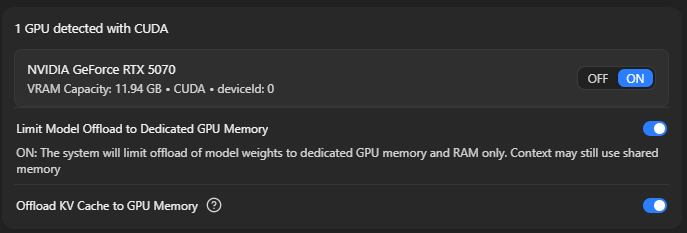
A Gigabyte RTX 5070 Gaming OC loaded with Qwen 3.5 9B, served over your local network via LM Studio, becomes instantly accessible from the Pad 8 Pro through Anything LLM. Your tablet is no longer the engine — it’s the remote control. The PC does the heavy thinking. The tablet shows you the answer.
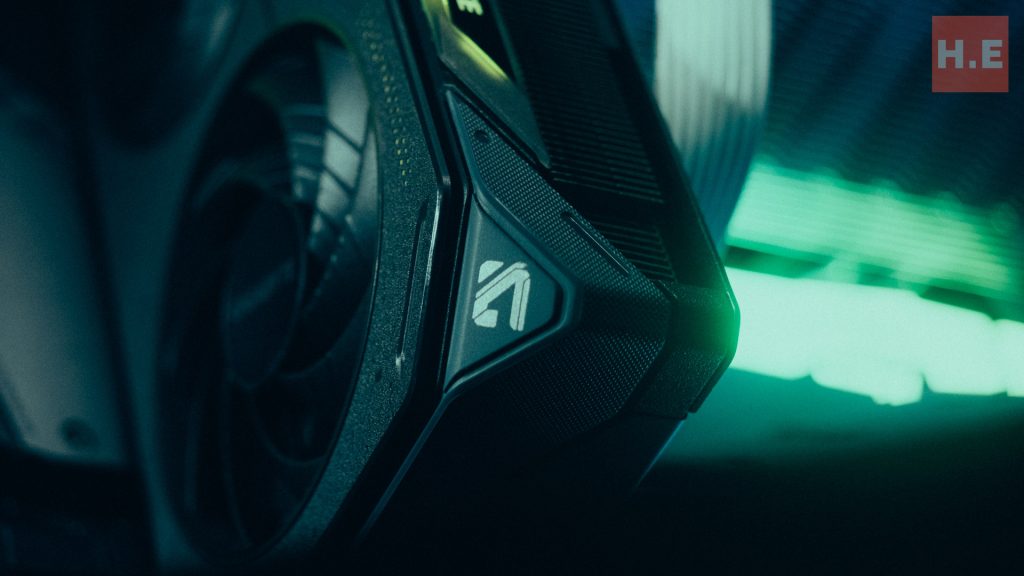
The Gigabyte RTX 5070 is the hardware that made this work. I’ve been with Gigabyte for years specifically because they have the least drama in the ecosystem. Their reliability is consistent, their customer support is responsive, and their cards don’t come with the reliability headaches other brands seem to ship with. The Gaming OC variant brings a modest factory overclock and solid thermals — not necessary for this workload, but the build quality is what sealed the choice.

This setup generates Qwen 3.5 9B responses at a constant 15-16 tokens per second, streaming live to your tablet over WiFi. It’s faster than waiting for a cloud API response, it’s entirely under your control, and it works offline on your home network.
Setup: The Three Gotchas That Will Break Everything
Before you get to the performance benchmarks, you need to survive setup. There are exactly three friction points that will stop you cold if you don’t know about them.
Gotcha 1: Windows Firewall + Antivirus Double-Blocking Port 1234
LM Studio serves the model on port 1234 by default. Windows Defender sees it. Your antivirus sees it. Both will silently block it without telling you why. The tablet will timeout trying to connect, and you’ll spend an hour wondering if the endpoint is wrong.
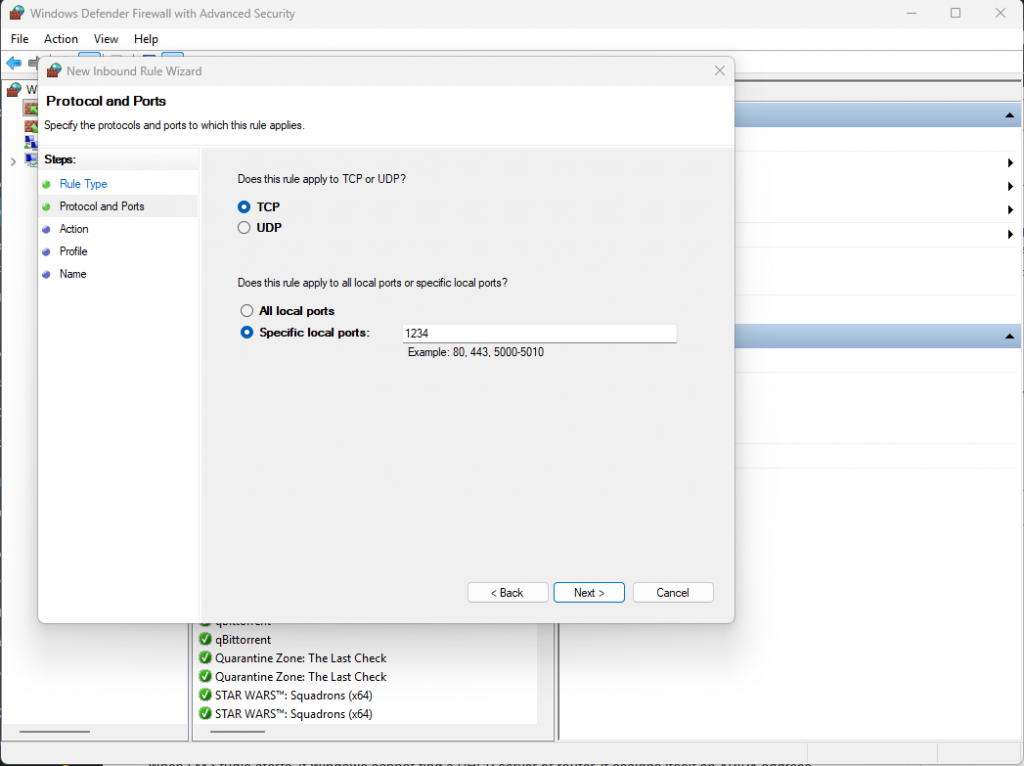
The fix is explicit:
- Open the Start menu, type wf.msc, and press Enter (Advanced Firewall)
- Click Inbound Rules on the left
- Click New Rule… on the right
- Choose Port → Next
- Choose TCP and type 1234 in the “Specific local ports” field
- Choose Allow the connection
- Check Private (and optionally Public if you’re paranoid)
- Name it “LM Studio Server” and click Finish
Also add a firewall exception in your antivirus settings. If you’re running Avast (like I was), whitelist port 1234 in the Avast Advanced Settings under Network.
Gotcha 2: APIPA Address Mismatch (169.254.x.x vs 192.168.x.x)
When LM Studio starts, if Windows cannot find a DHCP server or router, it assigns itself an APIPA address — something like 169.254.83.107. This is technically a valid address, but it only works on your local machine. Your tablet won’t see it.

The symptom: you can hit the server from your PC browser at http://169.254.83.107:1234/v1/models just fine, but the tablet times out every single time.
The fix:
- Open Command Prompt
- Type ipconfig /release and press Enter
- Type ipconfig /renew and press Enter
- Wait for the IPv4 Address to change to something like 192.168.0.xxx or 192.168.1.xxx
- Stop LM Studio completely
- Restart LM Studio — it will bind to the new IPv4 address
- Now test from the tablet: http://192.168.x.x:1234/v1/models should respond instantly
This is the difference between “stuck for hours” and “working in minutes.”
Gotcha 3: Which Android App Actually Works
Not all Android LLM clients can hit the /v1 endpoint correctly.
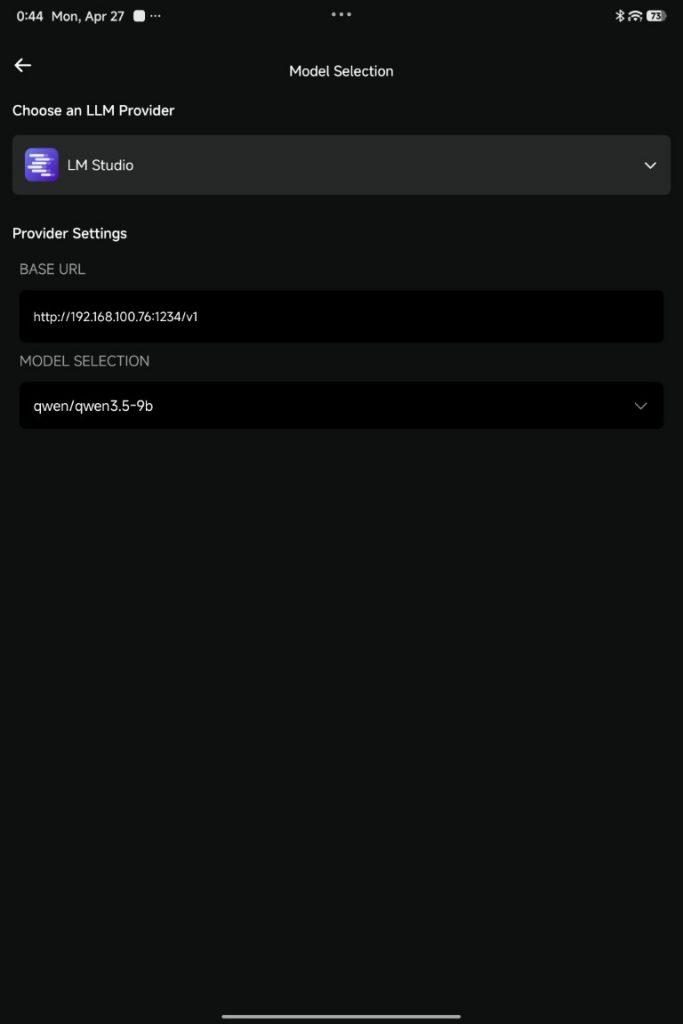
- Anything LLM: ✅ Works perfectly. Streams responses, handles the endpoint correctly, stays stable.
- LMSA (from Play Store): ❌ Failed to connect. The app couldn’t resolve the local network endpoint even with manual IP entry.
- Ollama Android client: ❌ Didn’t recognize the LM Studio server endpoint format.
Anything LLM is the client that works. Download it from the Play Store, set the BASE URL to http://192.168.x.x:1234/v1, select the model, and you’re done. It will stay your best option until other clients catch up to endpoint compatibility.
How Speed Actually Works: Prefill vs Decode
Before you look at the benchmarks, understand what you’re actually measuring. LLM speed has two completely different components that behave in opposite ways.

Prefill (prompt processing): The GPU reads your entire input prompt and processes it in parallel. It’s brutally fast — Qwen 3.5 9B on the RTX 5070 prefills at roughly 900+ tokens per second. A 1,000-token prompt takes about 1 second to process.
Decode (response generation): The GPU generates one token at a time, sequentially. This is the slow part — about 65 milliseconds per token. A 1,000-token response takes about 65 seconds.
This is why response time scales linearly with response length, and why the network speed doesn’t matter much. Your WiFi latency is measured in milliseconds. Decode latency is measured in tens of milliseconds per token. Once prefill is done (usually instantly from your perspective), the GPU’s decode speed is the only thing that matters.

Short prompt, short answer? You’re GPU-bound by decode, not network. Long prompt, long answer? Same thing — decode is the bottleneck.
Real-World Performance: Four Benchmarks
Here’s what you actually get:
| Test Case | Prompt tokens | Output tokens | Decode t/s | Total time | Takeaway |
| Ultra-short (“Hello”) | 1,101 | 81 | 15.20 | 6.5s | Even single-word inputs take ~5s to generate responses |
| Short (quick question) | 634 | 228 | 15.69 | 15.3s | Prefill is negligible, decode dominates |
| Medium (typical query) | 599 | 797 | 15.23 | 53.0s | Linear scaling with response length |
| Longer (complex task) | 1,228 | 1,325 | 15.43 | 86.9s | Consistent 15 t/s, regardless of prompt size |
The key insight: Decode speed is constant at 15-16 tokens/second. Decode time scales linearly with response length. This is not a bug or a limitation — this is how autoregressive LLMs work. A 1,000-token response will take roughly 65 seconds. A 100-token response will take roughly 6 seconds. The math is straightforward once you understand it.
This is also why your network performance is almost irrelevant here. Prefill happens so fast that WiFi latency doesn’t register. Decode is dominated by GPU processing time, not network transfer.
The Pad 8 Pro as the Interface
The Xiaomi Pad 8 Pro becomes genuinely interesting once you realize it’s not trying to run the model — it’s showing you the results. The 11.2-inch 3.2K display, the Snapdragon 8 Elite processor for responsive UI, the 9200mAh battery for all-day use — these specs exist to give you a comfortable interface to a remote AI.
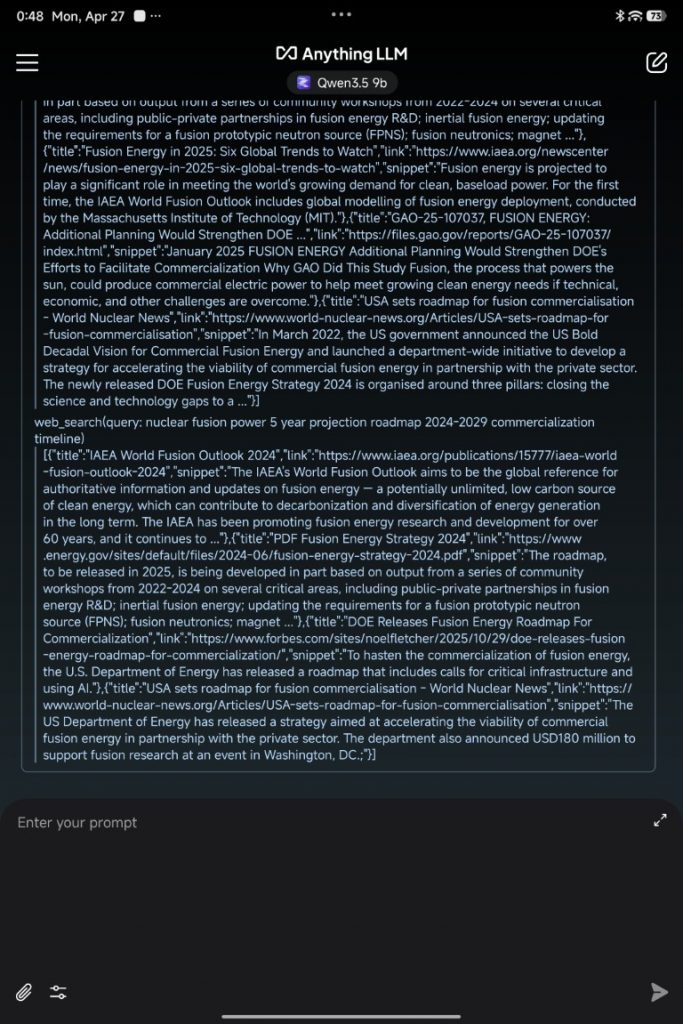
Anything LLM on the Pad 8 Pro streams the response in real-time. You see tokens appearing as they’re generated on the PC. The UI is responsive. The experience is fluid. At RM2,699 for the 8GB config, you’re getting a legitimately capable AI interface device — not because it runs the model, but because it displays the results beautifully while consuming minimal power.
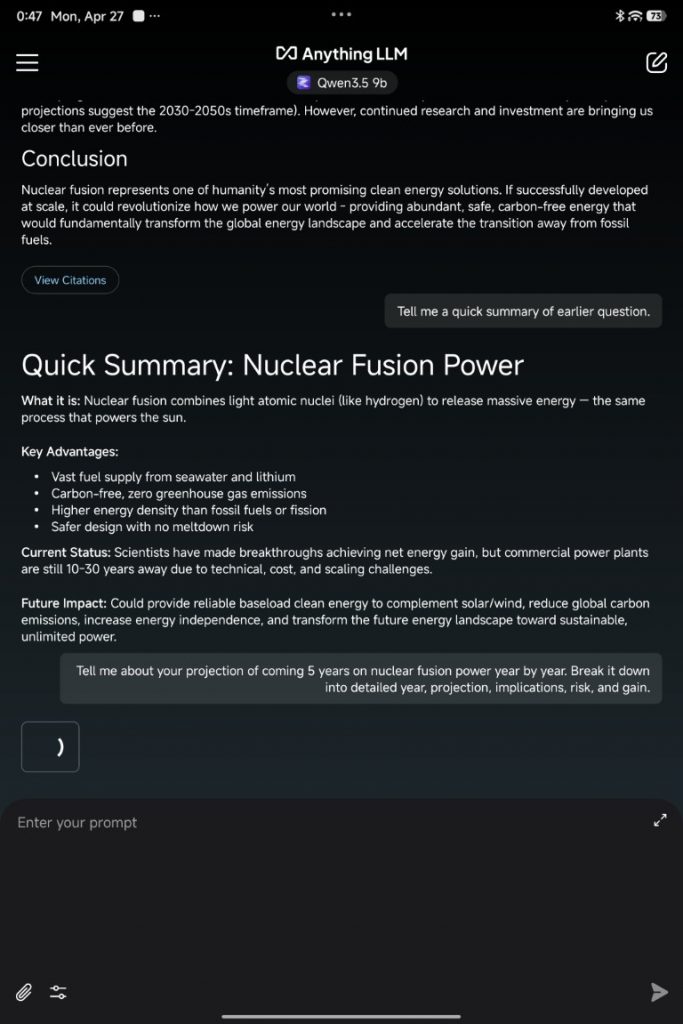
Compare this to running 4B locally on the Pad 8 Pro. You get instant responses, offline capability, and the satisfaction of on-device computation. But you’re capped at 4B quality. Stream 9B from your PC, and you get significantly better reasoning, better structured output, and better handling of complex prompts — all for the cost of being within WiFi range of your PC.
When to Use What
| Scenario | Best Choice | Why |
| Quick factual lookup (offline) | Pad 8 Pro 2B locally | Instant, offline, sufficient |
| Daily driver (at home) | Pad 8 Pro 4B locally | 11 t/s is usable, batteries included |
| Complex reasoning (at home) | PC 9B via Anything LLM | 15 t/s, better quality, home WiFi |
| Complex reasoning (on the go) | PC 9B via Tailscale | Latency penalty, but best quality available |
| No home PC | Pad 8 Pro 4B or cloud API | Accept the ceiling, or pay for cloud |
The Sovereignty Story
This entire setup exists because you own the hardware and the data. There is no API key, no usage tracking, no third-party terms of service. You run what you want, when you want, how you want.
A cloud API gives you reliability and scaling. But you pay for every token, and every query is logged somewhere. A local 4B model on the Pad 8 Pro gives you offline capability, but you’re capped at that quality ceiling. A hybrid setup — local 4B for quick queries, home-PC 9B for serious work — gives you the best of both worlds.
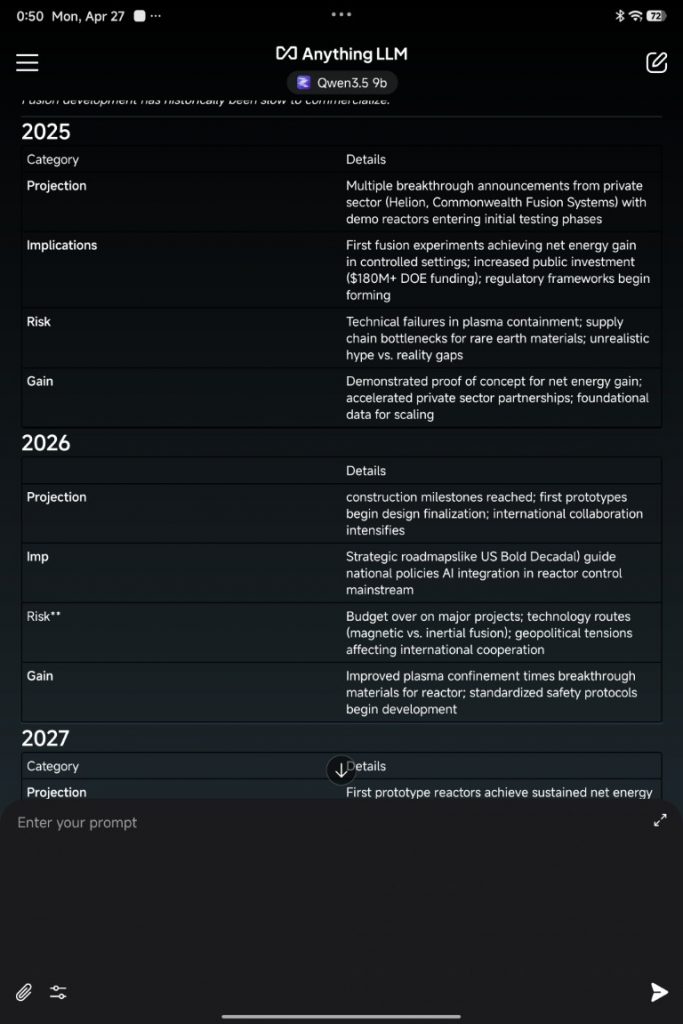
The PC-as-server approach scales further if you decide to invest: upgrade the GPU in a few years, run multiple models in parallel, or add other AI workloads (image generation, video processing, voice synthesis). Your PC becomes a genuine local AI infrastructure investment that gets better as the models improve.
For Malaysian buyers specifically, this matters. Cloud API costs accumulate if you use AI daily. Electricity costs for a gaming PC are real, but they’re one-time hardware spend. If you already own a decent gaming PC and an Android tablet, this setup costs you nothing and gets you 9B-class reasoning offline, whenever you want it.
For more information on private Ai, check out our dedicated article here:
Conclusion
The Xiaomi Pad 8 Pro alone hits its ceiling at 4B. Combined with a home PC and LM Studio, it becomes a window into 9B-class reasoning that rivals or beats cloud APIs in speed and beat them entirely in cost and privacy.
The setup friction is real but solvable — port blocking, IP address mismatches, and client compatibility are all documented here. Once through that, you have a hybrid local/remote AI system that works at home and follows you on the road.
For readers with a gaming PC gathering dust and a Pad 8 Pro in hand, this is the path to genuinely useful on-demand AI, entirely under your control.
Help support us!
If you are interested in the Xiaomi Pad 8 Pro, we would really appreciate if you purchase them via the links below. The affiliate links won’t cost you any extra, but it will be a great help to keep the lights on here at HelloExpress.