

Laptop Overheating? Here’s Some Things To Consider

Laptops are getting more compact these days but that doesn’t mean that they’re any slouch. They do offer powerful performance but due to their size and build, they can heat up quickly. If you find that’s an issue that you’re facing, here are some tips to aid you in that.

Dust Build-Up
One of the common reasons that laptops overheat is simply due to dust and debris collected over the time that you’ve used your machine.
Over time, they can block the air vents as well as slow down your laptop’s internal fans. As you can imagine, that’s not good news for your machine, especially if you’re doing heavy workload or on an intensive gaming session.
It’s a nice practice to clean up the vents and if you’re brave enough, clean the internal fans as well with tools such as compressed air or a soft brush.
Where Are You Putting It?
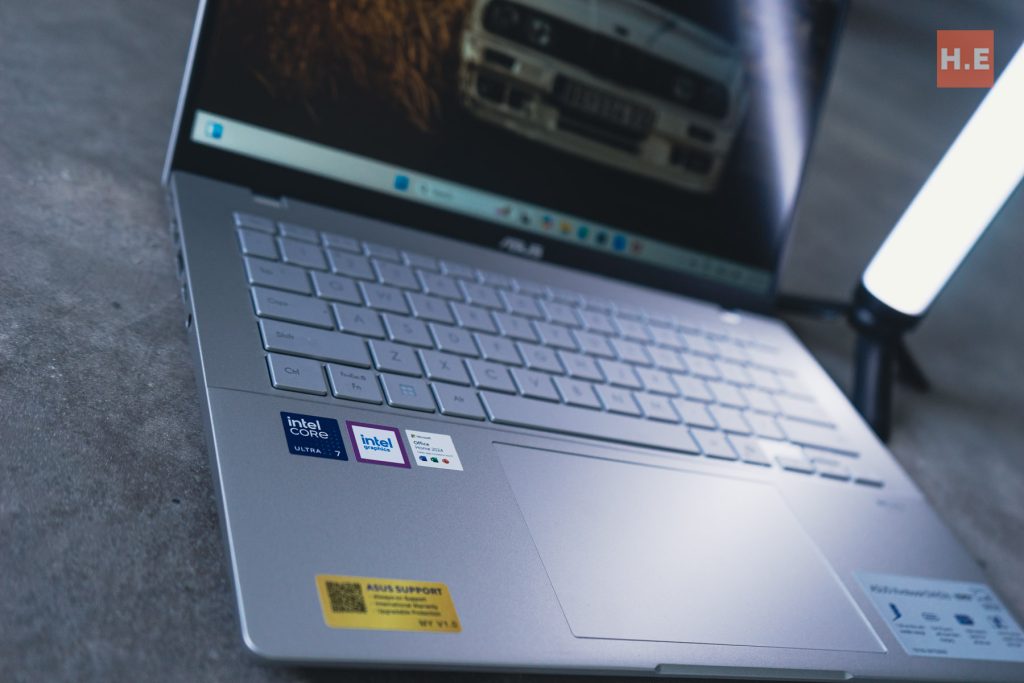
Placement of your laptop also plays a part, believe it or not. It’s best if you’ve got decently cool environment but we get it, not everyone can afford air conditioning. That being said, it’s not the end of the world, you could opt to get a laptop cooler.
It’s worthy to mention that we’ve seen some laptops aren’t suitable for some coolers and actually doesn’t make a difference. Take a look at your laptop’s design and see where the vents are blowing. If one of the vent is underneath and blowing out, it’s not really helpful that the cooler is blowing that hot air back in to your laptop is it?
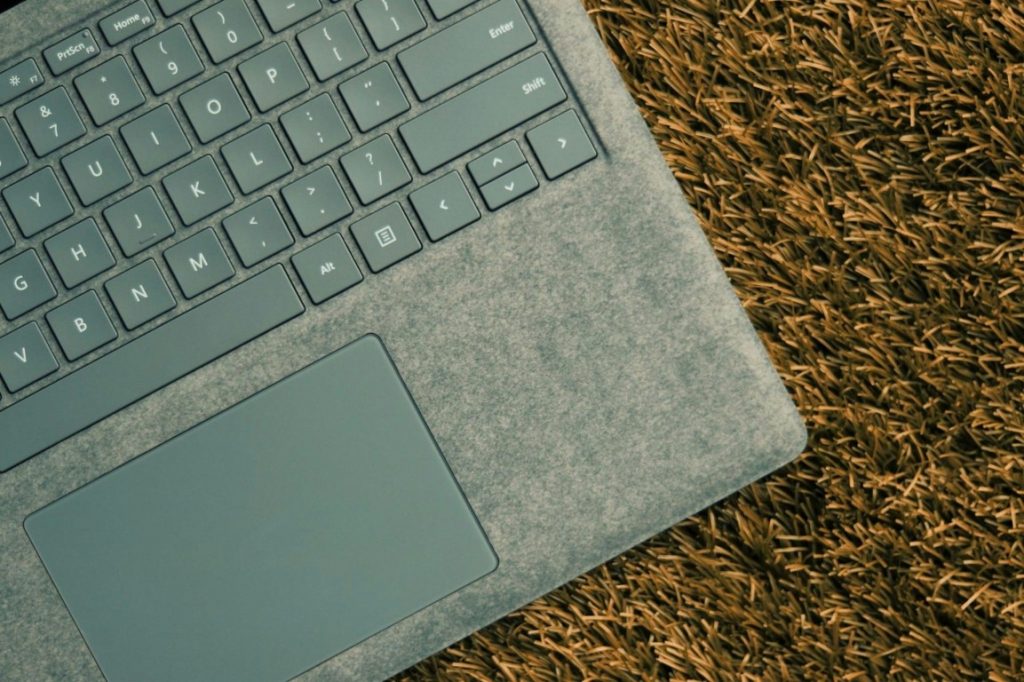
Another thing to consider is to have your laptop tilted to an angle, as to not lay flat on the surface. You’d be surprised on how much of a difference a small step could make. Avoid having your laptop (while using it, of course) on soft surfaces such as beds, carpets, couches and the likes as they make it easier for airflow blockage and in turn, trap heat.
Processes

You might have noticed that your laptop fans picking up speed as you run more or intensive programs. Running too many of them can increase your CPU and GPU usage, which in turns generates more heat.
So if you aren’t using any of the apps or programs, just simply close them. You can find them easily through your Task Manager (Windows) and find any resource-heavy process that you’re not using and end their task. You could also disable any unnecessary startup programs too, just while you’re there too.
Time For A Change
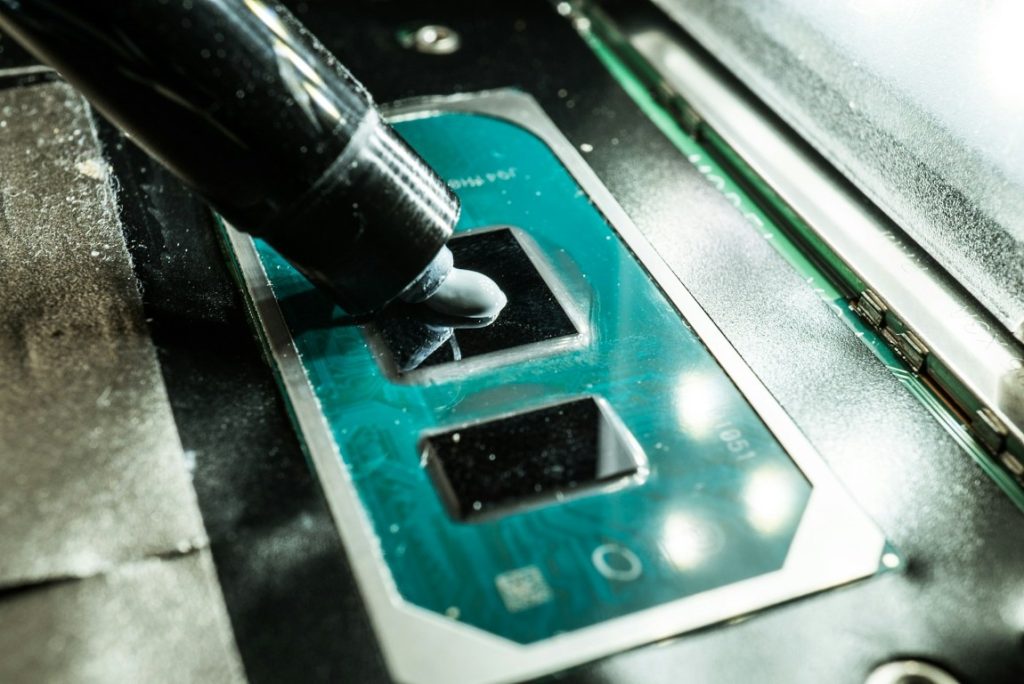
If you had your laptop for awhile and your warranty has expired, you might want to consider changing your thermal paste. Doing so for the CPU/GPU and heatsink can give a better heat transfer.
Laptops these days can be a little bit complicated in terms of design so if you intend to do a repaste but not feeling brave enough, you should look for a trained professional or a service center to get yourself sorted. At the same time, you could go back to the first tip and get your laptop cleaned as well (win-win).
You Got The Power
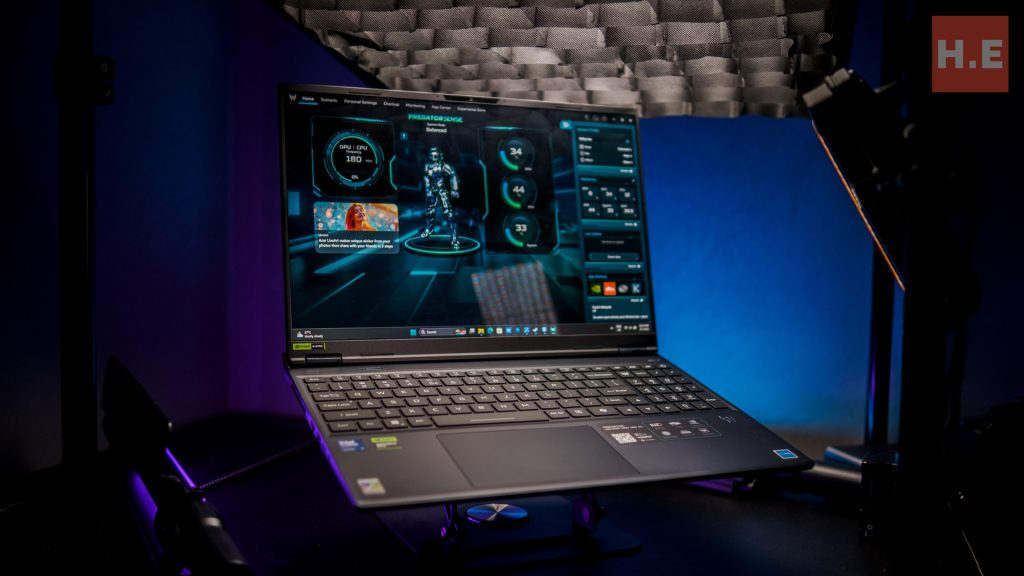
This goes for those who have a gaming laptop because nearly every machine in that category comes with a software that allows you to maximize your fan speeds.
Yes, it may be a bit loud but then again, you’re here looking for ways to cool your laptop, not make it quiet, right? Besides, you could always wear headphones to negate that issue.
You’ve spent a considerable amount of money on a beast of a machine, utilize it and take advantage of what it has to offer. Keeping your laptop cool isn’t just about comfort, it’s also about having performance and prolong its lifespan. Regular maintenance, proper usage, and some upgrades can go a long way.