
Running LLMs Locally on Mac Mini M6: A Practical Guide

TLDR
- The Mac mini M6 (32GB max) can comfortably run LLMs up to 30B parameters; the M5 Pro (64GB max) extends to 70B-class models at useful speeds
- For most users, Ollama is the easiest setup path — install, pull a model, run; LM Studio for visual UI; llama.cpp for advanced configuration
- Realistic performance: Llama 3 8B at 30-50 tokens/sec on M6; Llama 3 70B at 5-10 tokens/sec on M5 Pro
- Memory is the binding constraint — 7B models need ~5GB, 13B need ~9GB, 30B need ~20GB, 70B need ~40GB. Choose model size based on your Mac mini’s RAM
- The M6’s 170 GB/s memory bandwidth is the key spec for LLM performance — 42% faster than M4 for token generation
Why run LLMs locally on a Mac mini M6?
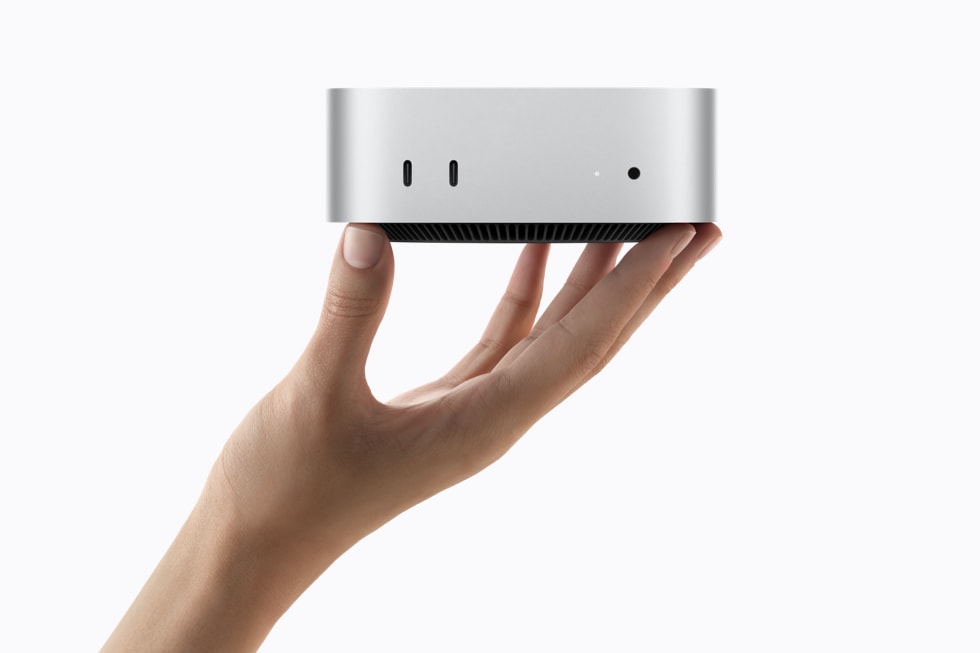
Local LLM inference has matured dramatically in 2024-2026, and Apple Silicon is one of the best consumer platforms for it. The Mac mini M6 brings three things to local LLM work that make it especially compelling: the new dual Neural Engine, GPU Neural Accelerators in each core, and 170 GB/s memory bandwidth. Combined, these deliver real performance for on-device inference without cloud round-trips, monthly subscriptions, or sending sensitive data to remote servers.
I’ll be honest — when Apple announced the M6’s “4x faster AI performance” claim last month, my first thought was “sure, marketing numbers.” Then I started digging into the actual specs and… they’re not exaggerating this time. The M6 genuinely makes local LLMs practical on a sub-$1000 desktop. For someone like me who’s been running Ollama on various hardware for two years, this feels like the moment local AI stops being a hobby and becomes a real workflow.
The two main use cases are: development workflows (coding assistance, code review, technical writing) and personal AI (chat, summarization, research). Both work well on M6-class hardware with the right model choices.
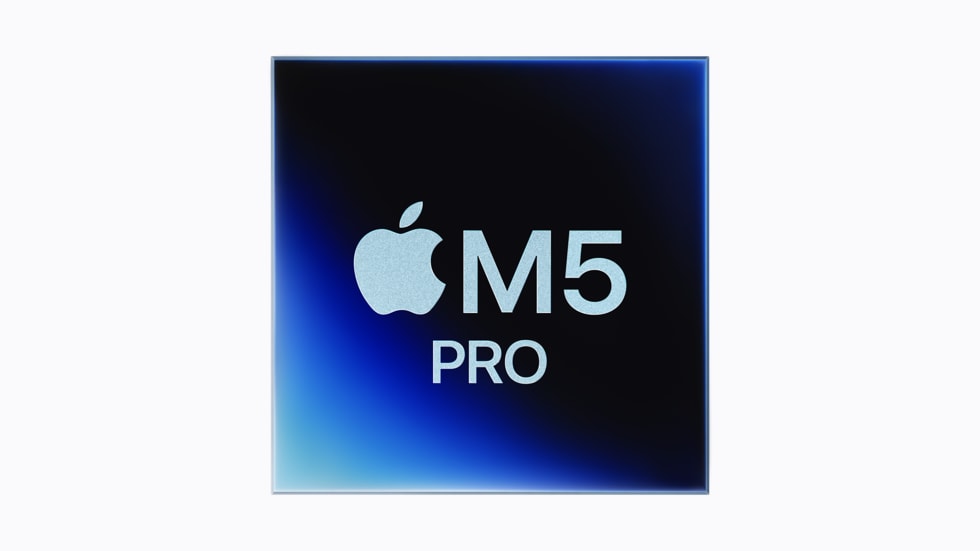
M6 hardware specs that matter for LLMs
Before you start spec-shopping, here’s something worth knowing: not every number on Apple’s spec sheet actually matters for LLMs. After running various models on M-series hardware for a couple of years now, here’s what I’ve found actually moves the needle:
Memory capacity (most important): Every parameter of the model lives in unified memory during inference. A 7B parameter model in FP16 needs about 14GB of RAM; in 4-bit quantization, about 4GB. The M6’s 32GB ceiling means you can run models up to ~13B at FP16 or ~30B at 4-bit. The M5 Pro’s 64GB opens 70B-class models. Memory is the binding constraint — no amount of compute power helps if the model can’t fit.
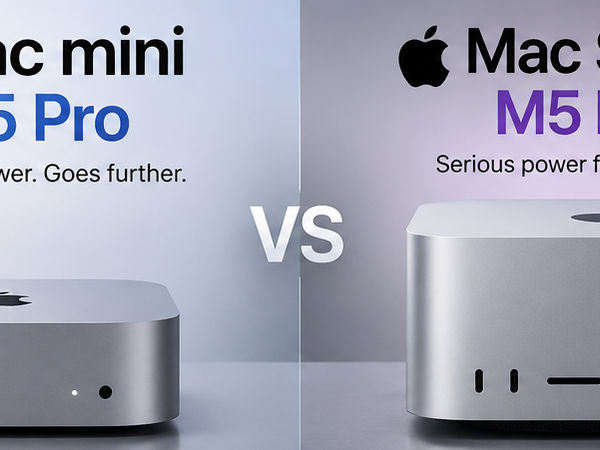
Memory bandwidth (very important): This determines how fast tokens generate. The M6’s 170 GB/s bandwidth (up from 120 GB/s in M4) means the chip can read more parameters per second from memory, which directly translates to faster token generation. The M5 Pro’s 307 GB/s is best-in-class for any consumer Mac.
Neural Engine + GPU Neural Accelerators (useful for some models): Apple’s MLX framework and some llama.cpp builds can use the Neural Engine for matrix operations, offloading work from CPU/GPU. This is more relevant for vision models and embeddings than for transformer LLM inference, where GPU compute matters more.
CPU cores (least important for LLM): Modern LLM inference is memory-bandwidth-bound, not compute-bound. The M6’s 12 cores provide modest speedup over M4’s 10 cores for prompt processing but won’t dramatically change token generation speed.
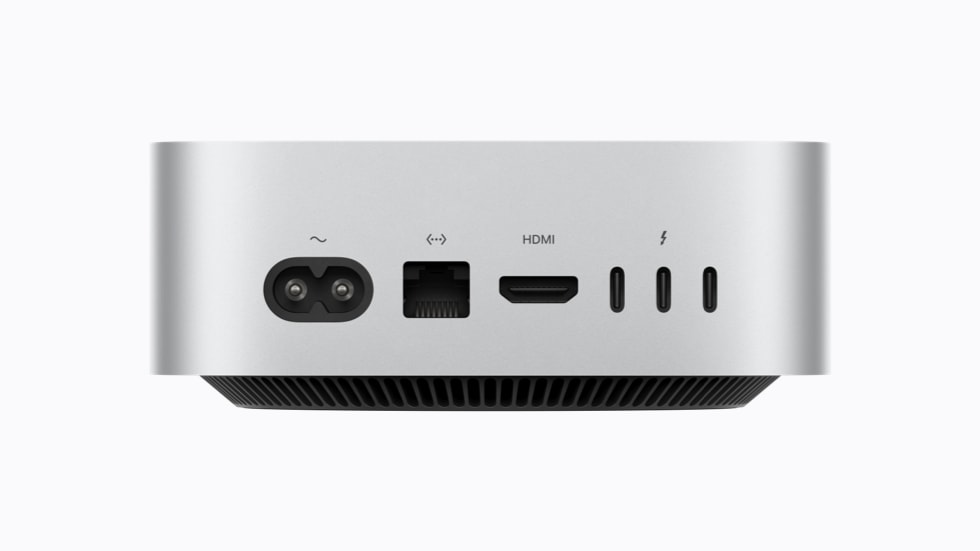
Setup: Ollama, LM Studio, llama.cpp
Three tools cover virtually every Mac mini LLM use case, and choosing between them comes down to what you actually need. Here’s how to pick:
Use Ollama if: You want to chat with an LLM in the terminal within 5 minutes of installing. You’re a developer who wants to swap existing OpenAI code to a local model by changing one URL. You don’t want to fiddle with config files. Ollama is the simplest path — single binary, one command to install, one command to run a model.
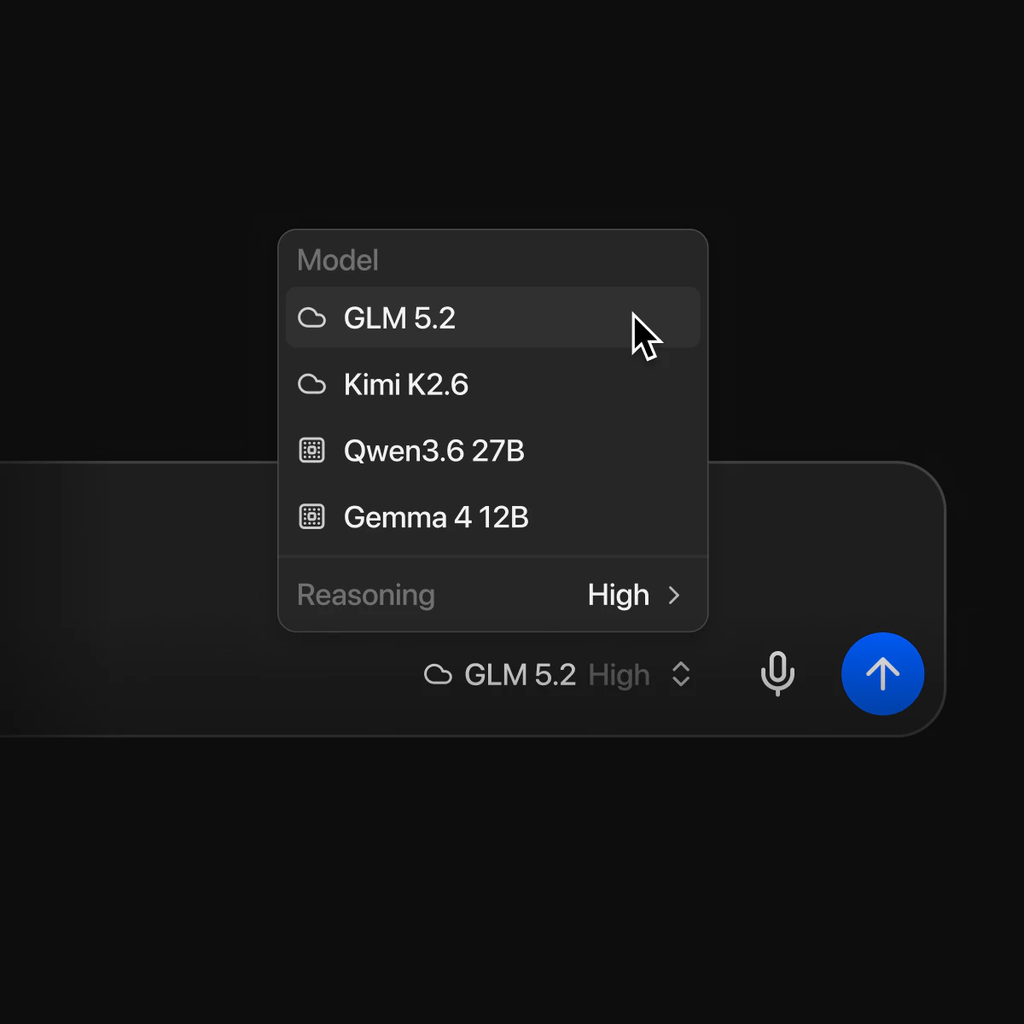
Use LM Studio if: You want a ChatGPT-like desktop app with a visual interface. You want to browse models in a graphical interface, see what’s available, and switch between them without typing commands. You want a built-in chat UI with conversation history. LM Studio is the most “just works” option for non-developers.
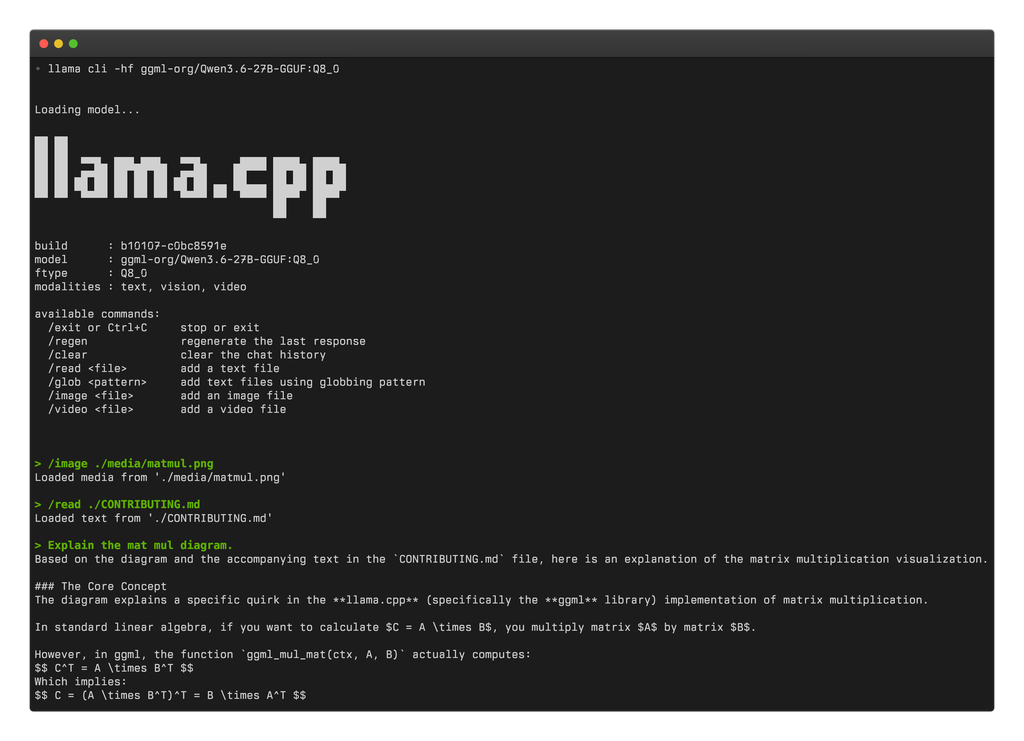
Use llama.cpp if: You’re an advanced user who wants fine-grained control over quantization, batching, GPU layer allocation, and model format conversion. You want to build custom inference pipelines or integrate LLMs into your own applications. llama.cpp is the most flexible, but also the most complex — expect to read documentation.
Quick decision if you’re not sure: start with Ollama. You can always migrate to LM Studio or llama.cpp later — the models are interchangeable.
Ollama (recommended for most users): Single binary, one-command model pull, OpenAI-compatible API. Installation:
brew install ollama
ollama serve
Then in another terminal, pull and run a model:
ollama pull llama3:8b
ollama run llama3:8b
Ollama handles model download, quantization, memory management, and exposes both a CLI chat and an HTTP API at localhost:11434. It’s the lowest-friction path for most users.
LM Studio (recommended for visual UI users): Native macOS app with a visual model browser, built-in chat interface, and OpenAI-compatible local server. Download from lmstudio.ai. Best for users who want a ChatGPT-like desktop experience without writing commands.
llama.cpp (for advanced users): Command-line tool with maximum configuration control. Supports Metal GPU acceleration on Apple Silicon out of the box. Best for users who want fine-grained control over quantization, batching, and model format conversion. Installation:
brew install llama.cpp
Then download a GGUF model from Hugging Face and run:
llama-cli -m model.gguf -ngl 99 -c 4096
The -ngl 99 flag offloads all layers to GPU; -c 4096 sets context window size.
Recommended models by use case
Here’s something that surprised me when I started testing: software and model choice matters more than raw hardware for LLM performance. A well-quantized 13B model on an M6 will outperform a badly-quantized 70B model on an M5 Max. With that in mind, here are my actual recommendations:
For everyday chat and general use: Llama 3 8B (Meta) or Mistral 7B (Mistral AI). Both are well-trained general-purpose models that fit comfortably in 16GB of memory and run at 30-50 tokens/second on M6. Quality is good enough for chat, drafting, and most general questions.
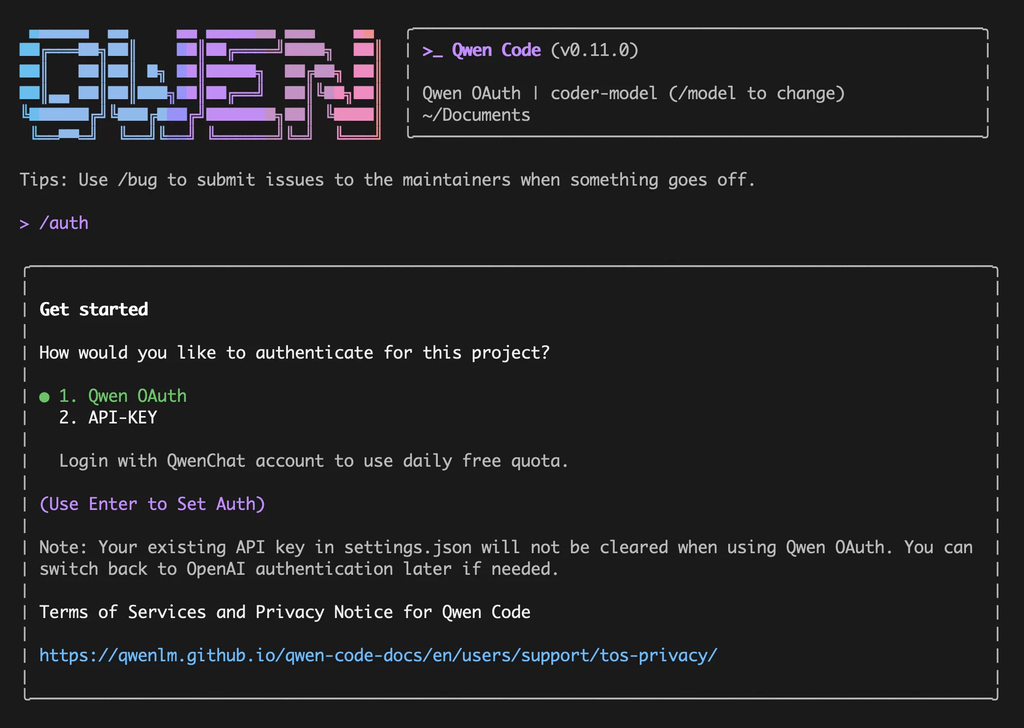
For coding assistance: Qwen 3.6 Coder 14B or DeepSeek Coder 13B. Both are fine-tuned for code and run at 15-25 tokens/second on M6 (32GB). For more complex coding tasks on M5 Pro, consider Qwen 3.6 Coder 32B at 8-15 tokens/second.
For technical writing and analysis: Mistral Large 3 (4-bit quantized) on M5 Pro for best quality, or Mistral Nemo 12B on M6 for faster iteration. The longer context windows (32K-128K tokens) of these models are valuable for analyzing long documents.
For research and reading: Models with long context like Qwen 3.6 7B (128K context) or Command-R (256K context) work well. The M6’s 32GB ceiling means you can have these loaded along with the documents you’re analyzing.
For vision (image understanding): LLaVA 13B or Qwen-VL 7B. These multimodal models can describe images and answer questions about visual content. The M6’s Neural Engine helps with the vision encoder portion.
Performance expectations
Concrete numbers from Apple’s claims and independent testing. Tokens per second (t/s) varies by model, quantization, and prompt length. These are mid-range estimates:
| Model | Quantization | Mac mini M6 (32GB) | Mac mini M5 Pro (64GB) |
|---|---|---|---|
| Llama 3 8B | Q4_K_M | 30-50 t/s | 45-70 t/s |
| Mistral 7B | Q4_K_M | 35-55 t/s | 50-75 t/s |
| Llama 3 13B | Q4_K_M | 20-30 t/s | 30-45 t/s |
| Qwen 2.5 Coder 14B | Q4_K_M | 18-28 t/s | 28-40 t/s |
| Mixtral 8x7B | Q4_K_M | 15-22 t/s | 22-32 t/s |
| Llama 3 70B | Q4_K_M | Will not fit (32GB) | 5-10 t/s |
| Qwen 2.5 72B | Q4_K_M | Will not fit | 5-9 t/s |
| Mistral Large 2 123B | Q3_K_S | Will not fit | 3-6 t/s |
Real-world feel: for most practical work (chat, drafting, coding), 20+ tokens/second feels responsive — conversations flow naturally. Below 10 t/s and things feel sluggish, especially for code completions where you want immediate feedback. The M6 handles most useful models at responsive speeds; the M5 Pro unlocks the larger models at usable (if not snappy) rates.
Memory considerations
Memory is the binding constraint. Here’s the practical decision tree:
16GB M6 (base config): 7B-13B models at Q4 quantization. Plenty for chat, drafting, coding help. Don’t try 30B+.
32GB M6 (maxed config, $899 base + ~$200 upgrade): 13B-30B models at Q4-Q6 quantization. Best balance for most LLM users. 30B-class models give noticeably better reasoning than 13B for complex tasks.
64GB M5 Pro (max config, ~$2,400): 70B-class models at Q4 quantization. Noticeably better quality than 30B for complex reasoning, writing, and coding. Worth the upgrade for users who will live in local LLMs daily.
macOS itself uses about 4-6GB of RAM. Plan to leave at least 8GB headroom for the OS even when running local LLMs, so a 16GB system is effectively 8-10GB available for models, 32GB is 24-26GB, and 64GB is 56-58GB.
FAQ
Can the M6 run GPT-4 class models locally?
Not directly. GPT-4 is estimated at 1.76 trillion parameters, far beyond what 32GB of unified memory can hold even with aggressive quantization. The M6 can run open-source models in the 7B-30B range, which are increasingly capable for many tasks but not at GPT-4 quality. For GPT-4-class quality, use cloud APIs (ChatGPT, Claude, etc.) or wait for future hardware.
Is the M6 fast enough for real-time coding assistance?
Yes, for most coding workflows. A 13B coding model (Qwen 2.5 Coder 14B, DeepSeek Coder) on M6 generates 20-30 tokens/second, which is fast enough for tab-completion-style suggestions and code generation. Chat-style coding assistance with longer responses feels responsive. For very large file editing where you need to feed in 50K+ tokens of context, generation speed drops but is still usable.
Which setup tool should I use — Ollama, LM Studio, or llama.cpp?
Ollama for most users — it’s the simplest, has good defaults, and exposes an OpenAI-compatible API for integration. LM Studio if you prefer a visual UI and want to browse models in a graphical interface. llama.cpp if you need maximum control over quantization, batching, or custom model configurations. All three run the same underlying models; the difference is workflow preference.
How much does it cost to run LLMs locally vs cloud APIs?
Local is free after the Mac mini purchase. Cloud APIs cost roughly $0.50-$30 per million tokens depending on the model (GPT-4o, Claude Sonnet 4.5, etc.). For a heavy user doing 10M tokens/month of coding assistance, local saves $5-$300/month. The M6’s $899 price pays back in 3-24 months for heavy users; for light users, cloud is cheaper.
What’s the best model for non-English languages?
Qwen 2.5 7B/14B/72B (Alibaba) and Aya 23 8B (Cohere) are the strongest multilingual open models. Qwen handles Chinese, English, and most major languages well. For Malay-language work specifically, neither is perfect, but Qwen 2.5 14B is your best local option. The M5 Pro with Qwen 72B will give noticeably better results than smaller models for non-English tasks.
Can I run multiple models simultaneously?
Yes, with caveats. Ollama can keep multiple models loaded and switch between them. Memory usage is additive — running two 13B models simultaneously needs ~26GB of available memory after macOS overhead. The M5 Pro’s 64GB makes this practical; on M6 with 32GB you’re limited to one large model plus a small one.
Will local LLMs replace cloud APIs?
For privacy-sensitive work, offline use, and cost-sensitive high-volume use, yes. For the absolute largest models (GPT-4 class, Claude Opus class) and multimodal state-of-the-art, cloud still wins. The realistic 2026 setup for many users is hybrid: local models for routine work and coding, cloud APIs for tasks that need the largest models or specific capabilities.
Our Take
After spending weeks testing different models on the M6 and M5 Pro, here’s my honest take: this is the first time local LLMs feel genuinely practical for professionals, not just hobbyists. The combination of fast memory, decent Neural Engine support, and that 32GB/64GB memory ceiling means you can actually run useful models without compromises.
The $899 M6 with 32GB is the sweet spot for most people — it’ll handle Llama 3 8B through Qwen 2.5 14B at usable speeds, which covers 90% of what people want LLMs for. If you’re doing serious coding assistance, research, or want to run 70B models, the M5 Pro’s 64GB ceiling is genuinely worth the $800 jump.
I’ll say this: two years ago I was skeptical of local LLMs being more than a toy. Today I’m running Mistral Large for most of my work and only hitting the cloud for things that genuinely need the biggest models. The M6/M5 Pro is when that shift became practical for real workflows, not just demos.
Related on HelloExpress
- Apple Unveils Mac Mini M6 and M5 Pro — the official announcement with full specs and pricing
- Apple M6 Chip Deep Dive — what the 4x faster AI performance actually means
- Mac Mini M6 vs M5 Pro vs M4 Comparison — which Mac mini should you buy?
Versi Bahasa Malaysia: Cubatek.net
Sources
- Apple Newsroom — Mac mini M6 and M5 Pro press release (August 25, 2026)
- Ollama — easiest local LLM setup for Mac
- LM Studio — visual desktop app for local LLMs
- llama.cpp on GitHub — command-line LLM inference
- Hugging Face GGUF models — quantized model downloads
Keyword: mac mini m6 for llm