

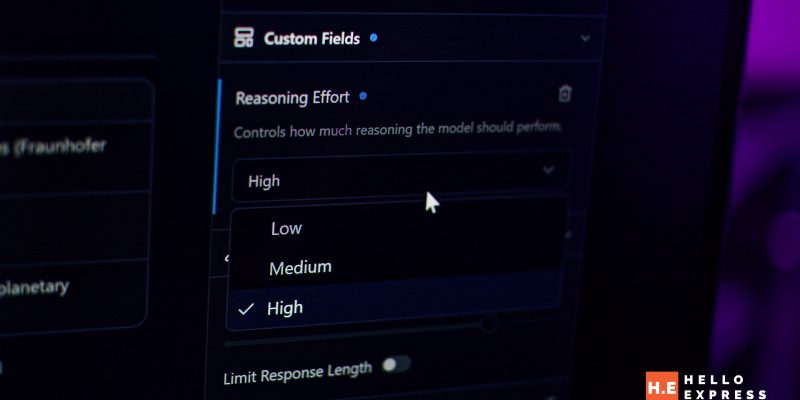
LM Studio Installation Guide: Run AI Locally in Minutes

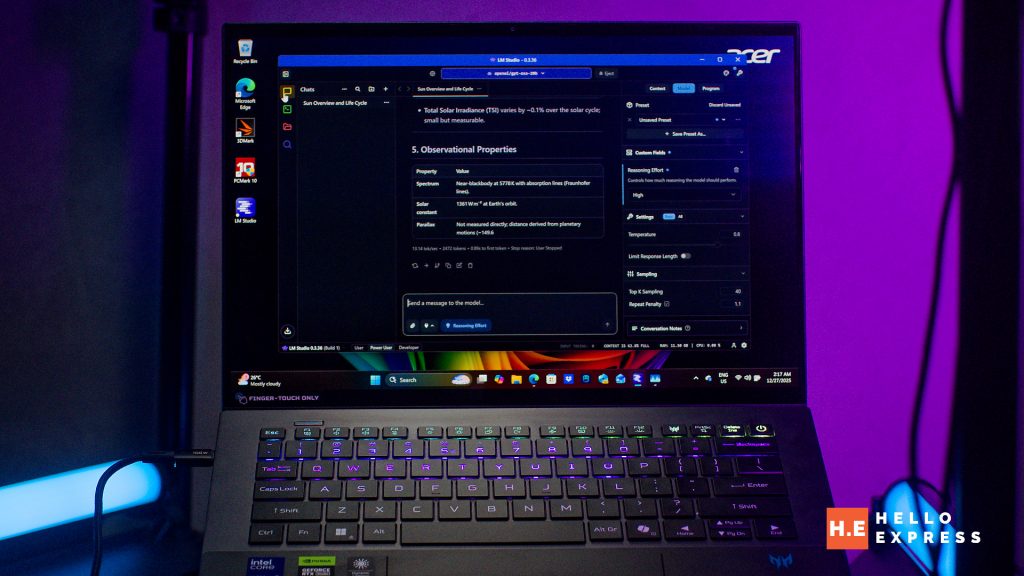
LM Studio is a cross-platform desktop application that allows you to discover, download, and run open-source AI models entirely on your own hardware. Whether you want to experiment with Llama 3, Mistral, or DeepSeek, this guide will help you set it up in minutes.

Step 1: Download the Installer
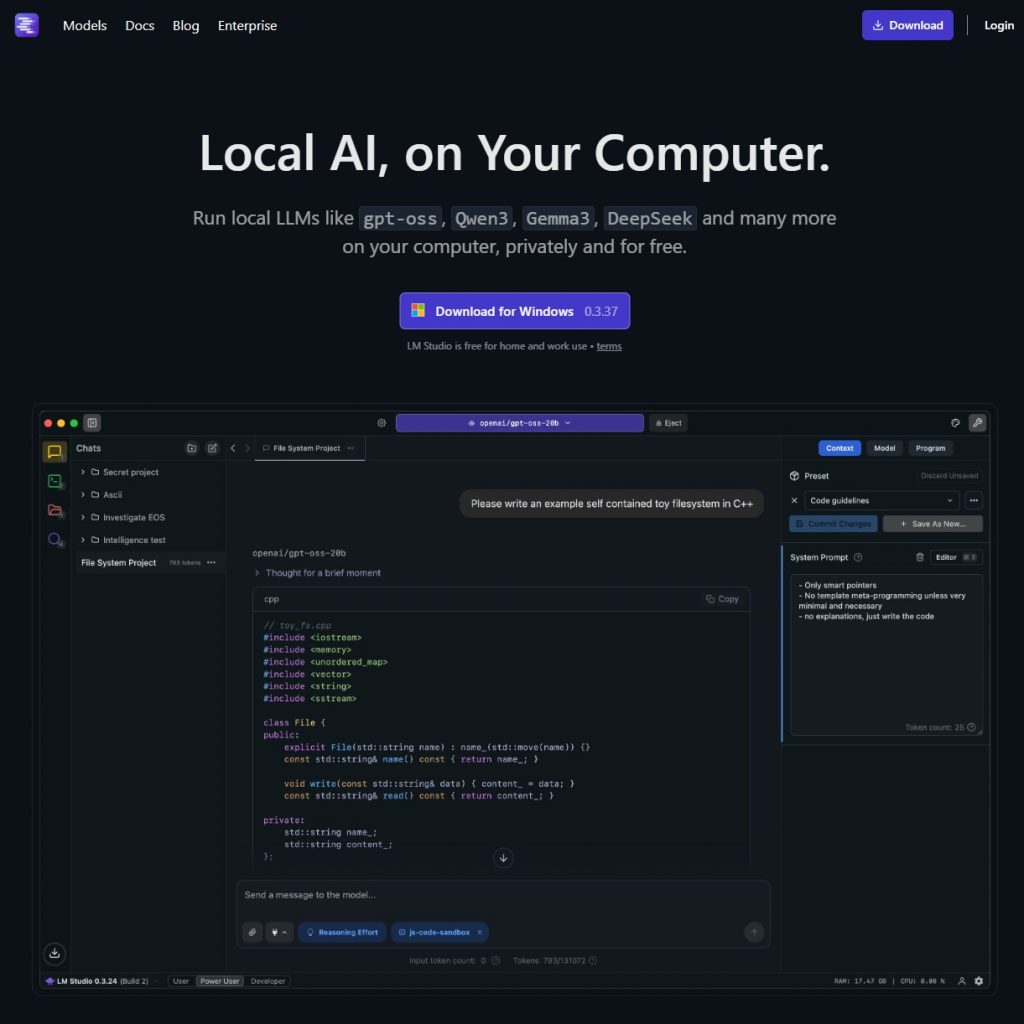
Go to the official website at lmstudio.ai. On the homepage, you will see download buttons for Windows, macOS (Intel or Apple Silicon), and Linux. Click the button that matches your operating system.
Step 2: Run the Installation
- Windows: Open the
.exefile. The installer will automatically set up the application and create a desktop shortcut. - macOS: Open the
.dmgfile and drag the LM Studio icon into your Applications folder. - Linux: Download the
AppImage, make it executable (chmod +x), and run it.
Meet the System Requirements

To ensure a smooth experience, your computer should ideally have:
- RAM: 16GB is recommended (8GB is the minimum for small models).
- GPU: An NVIDIA or AMD GPU with 6GB+ VRAM significantly speeds up response times, though it is optional as LM Studio can run on your CPU.
- Apple Silicon: If you have an M1, M2, or M3 Mac, LM Studio is highly optimized to use your Unified Memory.
3 Reasons Why LM Studio is the Best Choice for Beginners
While there are many tools for running local AI, LM Studio stands out for users who are just starting their journey but want room to grow.
1. Ready for More Complicated AI Work
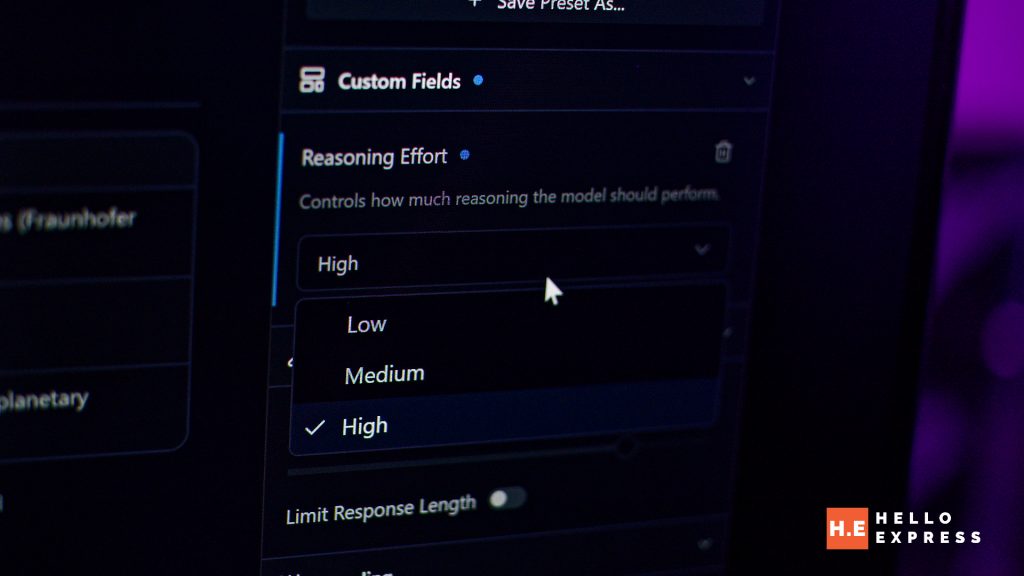
Most beginners start with a simple chat interface, but LM Studio prepares you for the next level. It features a Local Server tab that turns the app into an OpenAI-compatible API. This means you can connect your local models to other software, such as coding assistants or auto-GPT agents, without writing a single line of backend code.
Additionally, its new MCP (Model Context Protocol) support allows the AI to interact with external tools and servers, bridging the gap between a simple chatbot and a functional AI agent.
2. Local File Updates to Create a “NotebookLM” Environment
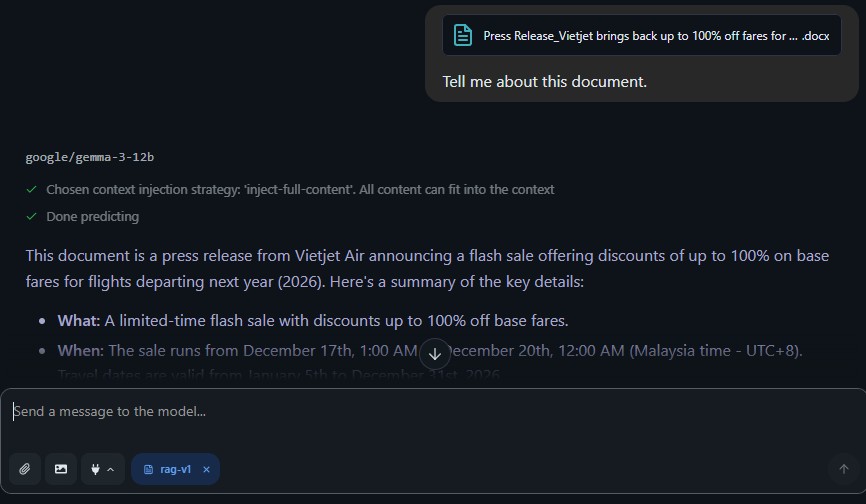
One of LM Studio’s most powerful beginner features is Chat with Documents (RAG). You can simply drag and drop a folder of PDFs, text files, or markdown notes into the app. LM Studio indexes these files locally, allowing the AI to answer questions based specifically on your data—similar to Google’s NotebookLM but with 100% privacy.
Because it monitors your local folders, any updates you make to your files are reflected in the AI’s “knowledge,” making it a perfect tool for research and organized note-taking.
3. Deep Customization of Model Behavior
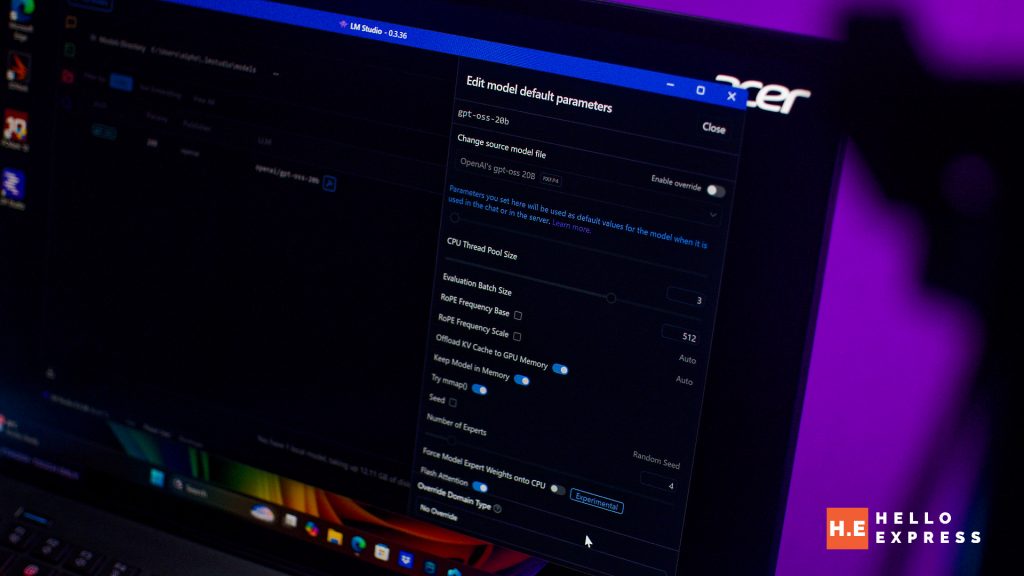
Unlike web-based AI which locks you into a specific “vibe,” LM Studio gives you full control via Presets. You can easily adjust:
- System Prompts: Tell the model to act like a strict editor, a creative poet, or a world-class programmer.
- Temperature: Slide it down for factual, consistent answers or up for creative “hallucinations.”
- Context Length: Control how much of the previous conversation the AI remembers. These settings are presented in a clean, visual sidebar, allowing beginners to learn how LLMs work through experimentation rather than complex configuration files.
Conclusion: Securing the Future of Local Intelligence
Using LM Studio will be the foundational step toward achieving AI independence in 2026. By transitioning from cloud-dependent platforms to a localized infrastructure, users gain unprecedented control over their data and their digital tools. As the search and AI ecosystem continues to shift toward more intelligent, intent-focused interactions, tools like LM Studio provide the necessary framework for individual and organizational success.